Keeping an Android phone updated is one of the simplest ways to improve security, fix bugs, gain new features, and keep apps running smoothly. Whether the device is a Samsung Galaxy, Google Pixel, Motorola, OnePlus, Xiaomi, or another Android model, the update process is usually straightforward, although the exact menu names may vary slightly by manufacturer.
TLDR: To update an Android phone, the user should connect to Wi-Fi, charge the device, back up important data, and open the phone’s Settings app. From there, the user can check the System or Software update section and install any available update. If no update appears, the phone may already be current, the update may not yet be available for that model, or the device may no longer be supported.
Why Android Software Updates Matter
Android software updates are more than cosmetic changes. They often include security patches that protect the phone from newly discovered threats, privacy improvements, battery optimizations, and bug fixes. Major Android version updates may also add redesigned menus, better notification controls, improved camera processing, stronger app permissions, and smoother performance.
For many users, delaying updates can lead to small problems over time. Apps may begin to behave unpredictably, Bluetooth or Wi-Fi connections may become less stable, and the device may miss important protections against malware or data theft. While updates do not make every phone feel brand new, they are an important part of normal device maintenance.
Before Updating an Android Phone
Before an Android owner starts the update process, a few basic preparations can prevent interruptions or data loss. Most updates install safely, but preparing the device is still a smart habit.
- Charge the phone: The battery should ideally be at least 50 percent charged. For larger updates, keeping the phone plugged in is recommended.
- Connect to Wi-Fi: System updates can be large. A stable Wi-Fi connection helps avoid mobile data charges and reduces the risk of a failed download.
- Back up important data: Photos, contacts, messages, and app data should be backed up before installing major updates.
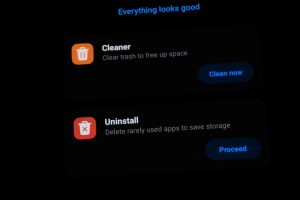
- Free up storage space: If the device is nearly full, the update may not download or install. Removing unused apps, old videos, and large files can help.
- Know the lock screen password: After an update, the phone may require the PIN, password, or pattern before biometric unlocking works again.
How to Back Up an Android Phone First
Most Android phones can back up essential data through a Google account. The owner can open Settings, look for Google, then choose Backup. From there, the phone may offer options to back up apps, call history, contacts, device settings, SMS messages, photos, and videos.
Photos and videos may also be backed up through Google Photos, while files can be copied to Google Drive, a computer, or an external storage device if supported. Some brands also provide their own backup tools, such as Samsung Cloud or device transfer apps. A backup is especially important before a major Android version upgrade, because it gives the user a safer recovery option if something unexpected happens.
How to Check for Android Updates
The most common way to update an Android phone is through the Settings app. Menu names differ slightly, but the general process is similar on most devices.
- Open the Settings app.
- Scroll down and select System, About phone, or Software update.
- Tap System update, Software update, or Check for updates.
- Wait while the phone checks for available software.
- If an update is available, tap Download or Download and install.
- After the download finishes, tap Install now or schedule the installation for later.
During installation, the phone may restart one or more times. The user should not force the device to power off during this stage unless the phone remains frozen for a very long time. Most installations take several minutes, but large updates can take longer.
Updating a Samsung Galaxy Phone
On many Samsung Galaxy devices, the update option is found by opening Settings and selecting Software update. The owner can then tap Download and install. If an update is available, the phone will begin downloading it. Samsung phones may also allow the user to schedule installation overnight, which is convenient when the device is charging and not in use.
Samsung frequently separates security patches from major Android upgrades. This means a device may receive regular monthly or quarterly security updates even if it is not yet eligible for the newest Android version. Galaxy owners can also check the About phone section to see the current Android version and security patch level.
Updating a Google Pixel Phone
Google Pixel phones usually receive Android updates earlier than most other brands. To check, the user can open Settings, tap System, then select Software updates or System update. If an update is available, the device will display the download and installation options.
Pixel devices may use seamless updates, which allow much of the installation to happen in the background. After the update is prepared, the phone typically needs a restart to complete the process. This can make updates feel faster and less disruptive.
Updating Other Android Brands
For Motorola, OnePlus, Nokia, Xiaomi, Oppo, Vivo, Sony, and other Android brands, updates are usually found in a similar location. The owner should open Settings and look for terms such as System, About device, Software update, or System update. Some manufacturers place update controls inside an app or branded menu, but the Settings app is still the best place to begin.
Carrier-branded phones may receive updates later than unlocked models because the carrier may test and approve the software before release. This is normal and does not necessarily mean anything is wrong with the phone.
What to Do If No Update Is Available
If the phone says it is already up to date, there are several possible explanations. The device may truly have the latest software available for that exact model. It may also be waiting for a staged rollout, which means the manufacturer releases the update gradually to different regions, carriers, or batches of devices.
Another possibility is that the phone has reached the end of its official update support period. Android manufacturers usually provide updates for a limited number of years. Newer flagship phones often receive longer support than older or budget models. If a device no longer receives security patches, the owner may want to consider upgrading to a newer phone, especially if the device is used for banking, work, or sensitive personal information.
How to Update Android Apps
System software is not the only thing that should stay current. Apps also need updates to remain secure and compatible. To update apps, the user can open the Google Play Store, tap the profile icon, and select Manage apps and device. If updates are available, the user can choose Update all or update specific apps individually.
Automatic app updates can also be enabled in the Play Store settings. This helps keep apps current without requiring frequent manual checks. However, users with limited data plans may prefer to allow automatic updates only over Wi-Fi.
Common Problems During Android Updates
Most updates install without trouble, but occasional problems can happen. If the download is slow, the user should check the Wi-Fi connection and move closer to the router. If the update fails because of low storage, deleting unused apps, clearing downloaded files, or moving photos and videos to cloud storage may solve the issue.
If the phone becomes stuck during installation, patience is important. Some update screens remain unchanged for several minutes. If the phone appears frozen for an unusually long time, the user may need to hold the power button until the device restarts. If the problem continues, contacting the device manufacturer, mobile carrier, or an authorized repair center may be necessary.

Should an Android Phone Be Updated Immediately?
In most cases, installing security updates promptly is a good idea. They are designed to fix vulnerabilities and improve protection. Major Android version updates can also be installed soon after release, although cautious users may wait a few days to see whether early problems are reported for their specific model.
For work phones or devices used for important tasks, the owner may prefer to install updates at a convenient time rather than immediately before travel, meetings, or urgent use. A phone should have enough time to download, install, restart, and settle after the update.
How to Confirm the Update Was Successful
After the phone restarts, the user can confirm the update by returning to Settings. In many devices, the current software details are found under About phone or Software information. This section may show the Android version, build number, kernel version, and Android security patch level.
The user should also check that essential functions work normally, including calls, messaging, Wi-Fi, Bluetooth, mobile data, camera, and important apps. It is common for a phone to feel slightly warm or use more battery shortly after an update while the system optimizes apps in the background. This usually improves within a day.
Best Practices for Keeping Android Updated
- Check for updates monthly: A quick manual check can catch updates that were not installed automatically.
- Keep automatic updates enabled when possible: This reduces the chance of missing important patches.
- Maintain free storage: Keeping several gigabytes free helps updates download and install properly.
- Use trusted networks: Updates should be downloaded over reliable Wi-Fi, not unstable public connections.
- Replace unsupported devices: If a phone no longer receives security updates, continued use may carry higher risk.
FAQ
How often should an Android phone be updated?
An Android phone should be updated whenever a new official security patch or system update becomes available. Checking once a month is a practical habit.
Will updating Android delete personal data?
Official Android updates normally do not delete personal data. However, backing up the phone before updating is strongly recommended, especially before a major version upgrade.
Why is the latest Android version not available on a phone?
The update may not have reached that model, region, or carrier yet. The phone may also be too old to receive the newest Android version.
Can an Android phone be used while an update is downloading?
Yes, the phone can usually be used while the update downloads. During installation and restart, however, the device will be temporarily unavailable.
Is it safe to update Android over mobile data?
It can be safe, but Wi-Fi is usually better because updates may be large. Mobile data updates can use a significant amount of data and may fail if the connection is unstable.
What should be done if an Android update fails?
The user should restart the phone, check storage space, connect to stable Wi-Fi, charge the battery, and try again. If the failure continues, support from the manufacturer or carrier may be needed.
Do Android app updates and system updates mean the same thing?
No. System updates update Android itself and device firmware, while app updates improve individual apps installed on the phone. Both are important for security and performance.