Windows 11 users often notice unfamiliar background processes running in Task Manager, and one name that occasionally raises eyebrows is ZTHelper. If you’ve come across it and wondered whether it belongs on your system—or if it’s something you should remove—you’re not alone. Understanding what ZTHelper does, where it comes from, and whether it poses any risks is key to making the right decision for your PC.
TL;DR: ZTHelper is typically a background process associated with third-party software, not a core Windows 11 component. In most cases, it is not essential to system performance and can be removed if it’s linked to software you don’t use. However, you should verify its origin before uninstalling anything to avoid disrupting legitimate applications. If it shows suspicious behavior, further investigation is recommended.
What Is ZTHelper?
ZTHelper is not a built-in Windows 11 system file. Instead, it is usually installed alongside third-party applications. The name “ZTHelper” suggests that it functions as a helper utility, meaning it likely runs in the background to support another program’s features, such as updates, notifications, or synchronization tasks.
In many cases, helper processes:
- Launch automatically at startup
- Check for software updates
- Manage background services
- Enable quick-launch features
While these functions are not inherently harmful, unnecessary background processes can consume memory and CPU resources, particularly on lower-end PCs.
Is ZTHelper a Virus?
The short answer: usually no—but it depends.
ZTHelper itself is commonly legitimate when installed alongside trusted software. However, malware developers sometimes disguise malicious files with neutral-sounding names like “Helper” to avoid detection.
To determine if ZTHelper is safe on your system, consider the following checks:
- File location: Right-click the process in Task Manager and select “Open file location.” Legitimate programs are typically stored in Program Files or Program Files (x86).
- Digital signature: Check the file properties for a verified publisher.
- Resource usage: Excessive CPU, disk, or memory usage may indicate a problem.
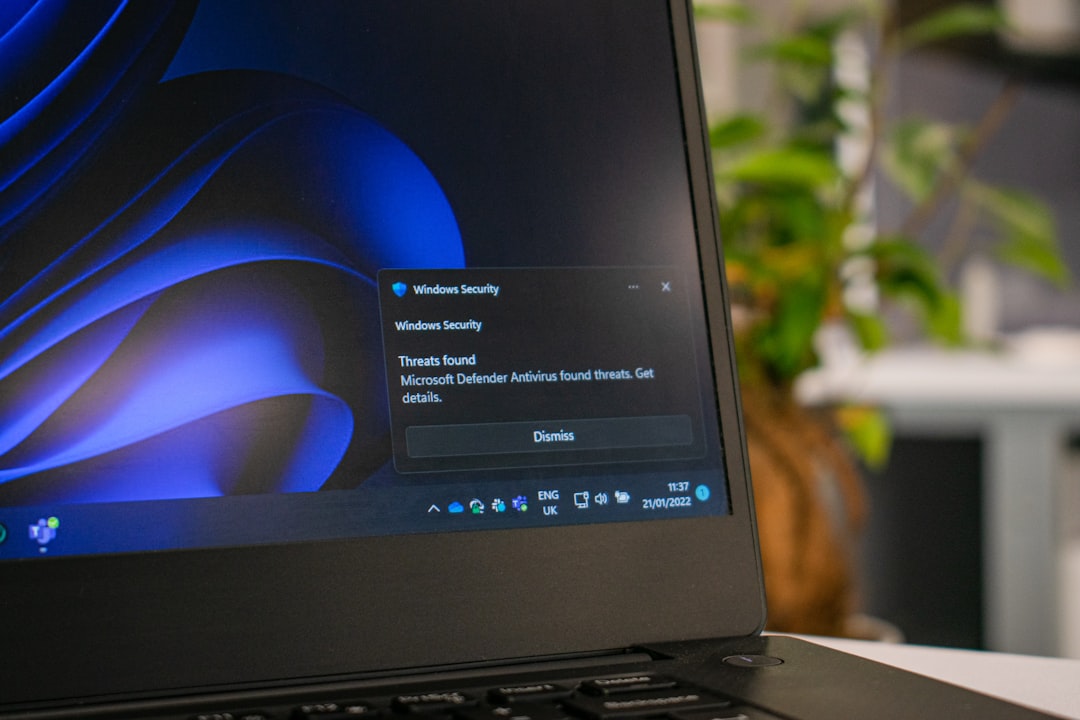
- Antivirus scan: Run a full system scan using Windows Security or another trusted antivirus tool.
If the file is located in a suspicious directory—such as a random folder in AppData or Temp—it may warrant deeper investigation.
Why Is ZTHelper Running on Your PC?
You likely installed a program that included ZTHelper as a component. Some software bundles include background utilities to enhance performance, manage settings, or preload features for quicker access.
Common scenarios include:
- Multimedia applications
- Printer or hardware utilities
- Cloud synchronization software
- System optimization tools
Sometimes these components remain active even after the main application is rarely used. Over time, unused helper processes can clutter your startup environment.
Pros and Cons of Keeping ZTHelper
To decide whether to remove it, it’s helpful to weigh the potential advantages and disadvantages.
Pros
- Keeps associated software updated
- Enables faster application startup
- Provides background syncing features
- May improve compatibility with certain tools
Cons
- Consumes system resources
- Adds to startup load time
- May run without clear user awareness
- Potential security concern if misidentified
If you actively use the software tied to ZTHelper, removing it could disable certain features. If you don’t, it may be unnecessary.
When Should You Remove ZTHelper?
Removal may be a good idea under specific circumstances:
- You no longer use the associated application
- ZTHelper causes high CPU or RAM usage
- Your antivirus flags it as suspicious
- It appears after installing unknown or bundled software
Before deleting anything manually, it’s better to uninstall the parent program through Settings > Apps > Installed Apps. Removing only the helper file could break software functionality.

How to Safely Remove ZTHelper
If you’ve decided removal is the right move, follow these safe steps:
- Identify the parent application: Check file properties to see which software installed it.
- Uninstall via Windows settings: Avoid deleting files directly.
- Restart your PC: Ensure the process doesn’t return.
- Run a malware scan: Confirm no leftover threats remain.
- Check Startup apps: Disable related entries if necessary.
If ZTHelper persists after uninstalling its associated software, it could indicate incomplete removal or potentially unwanted software.
Performance Impact: Does It Slow Down Windows 11?
On modern systems with ample RAM and SSD storage, a single helper process like ZTHelper may have minimal noticeable impact. However, Windows 11 performance depends heavily on:
- Available RAM
- Number of startup programs
- CPU capacity
- Background task load
If you have multiple similar processes running, the cumulative effect could slow boot times or reduce responsiveness.
You can evaluate its impact by:
- Opening Task Manager
- Switching to the Startup tab
- Checking the “Startup impact” rating
Disabling startup (rather than uninstalling) can be a safer first step.
Disable vs Remove: What’s Better?
Here’s a quick comparison to help you decide:
| Option | What It Does | Risk Level | Recommended When |
|---|---|---|---|
| Disable Startup | Stops it from launching at boot | Low | You want to test impact safely |
| Uninstall Parent App | Removes related software entirely | Medium | You no longer use the software |
| Manual File Deletion | Deletes executable file directly | High | Only if confirmed malware |
For most users, disabling startup or removing unused software is the safest and most practical approach.
Signs You Should Be Concerned
Although rare, certain warning signs suggest possible malicious activity:
- ZTHelper reappears after deletion
- It consumes unusually high resources
- Your browser homepage changes unexpectedly
- You experience frequent system crashes
In such cases, consider running:
- Windows Defender Offline Scan
- A reputable third-party malware scanner
- System File Checker (sfc /scannow)
Final Verdict: Should You Remove ZTHelper?
For most Windows 11 users, ZTHelper is not a critical system component. It is generally safe but typically non-essential. If it belongs to a program you actively use and trust, there may be no reason to remove it.
However, if you:
- Don’t recognize the associated software
- Notice performance issues
- Want a cleaner startup experience
Then removing or disabling it makes sense.
The key takeaway is simple: Verify before you modify. Always confirm the origin of any background process before uninstalling it. Windows 11 runs best when unnecessary clutter is removed—but careful investigation helps you avoid deleting something important.
Ultimately, ZTHelper isn’t something most users need to worry about—but it is something you should understand. And when it comes to maintaining a healthy Windows 11 system, awareness is always your strongest tool.