Modern screens offer incredible clarity and color fidelity, but sometimes, users may notice imperfections that can significantly detract from the viewing experience. One common issue that arises is the presence of dead pixels—individual pixels that fail to display correctly. Identifying a dead pixel may seem complicated, but with the right tools and knowledge, anyone can pinpoint and assess the problem quickly and accurately.
TL;DR (Too Long; Didn’t Read)
Dead pixels are small, non-functioning dots on your screen that remain black or show only a solid color, regardless of what’s on display. They can be identified using solid color backgrounds, pixel testing tools, or magnifying inspection. While not always fixable, spotting a dead pixel early can help you diagnose or claim warranty support if needed. This guide provides easy methods to locate and understand dead pixels on any digital screen.
What Exactly Is a Dead Pixel?
A dead pixel is a pixel on a screen that no longer illuminates with the rest of the display. Unlike stuck pixels, which are lit but stuck on a specific color (e.g., red, blue, or green), dead pixels are completely black. They do not emit any light and are typically due to hardware failure or manufacturing defects.
Common Causes of Dead Pixels
Understanding why a dead pixel appears can help manage expectations and possibly avoid similar issues in future devices. The following are typical causes:
- Manufacturing Defects: A tiny imperfection in the production line may lead to a pixel that does not function as intended.
- Physical Damage: Accidentally pressing too hard on a screen or dropping the device can cause pixel failure.
- Long-Term Use: Aging pixels may eventually stop working after years of regular screen use.
Signs That You Might Have a Dead Pixel
Spotting a dead pixel isn’t always straightforward, especially when using a visually busy interface. Here are some initial clues that may indicate a problem:
- A tiny black dot remains visible even when the screen image changes
- One part of the screen doesn’t adjust to brightness or dimness
- Color inconsistencies in specific areas during high-contrast scenes
Steps to Identify a Dead Pixel
Here is a detailed, step-by-step approach to identify a dead pixel on your screen:
1. Clean the Screen Surface
Before suspecting a dead pixel, ensure there’s no dust or smudge on the screen that could be mistaken for a defect.
2. Display Solid Colors
The easiest and most effective method is to display a series of solid colors (black, white, red, green, blue) one at a time.
- Open a browser tab in full-screen mode and search for “dead pixel test” or visit a dedicated site like DeadPixelsTest.org.
- Cycle through the color screens carefully.
- Look for areas where a pixel appears completely black or remains a single color throughout all screens.
3. Use a Pixel Testing Tool
There are specific software tools designed to detect pixel anomalies, including:
- Dead Pixel Buddy (Windows)
- InjuredPixels
- PixelHealer which also attempts to fix stuck pixels
4. Magnify the Problem Area
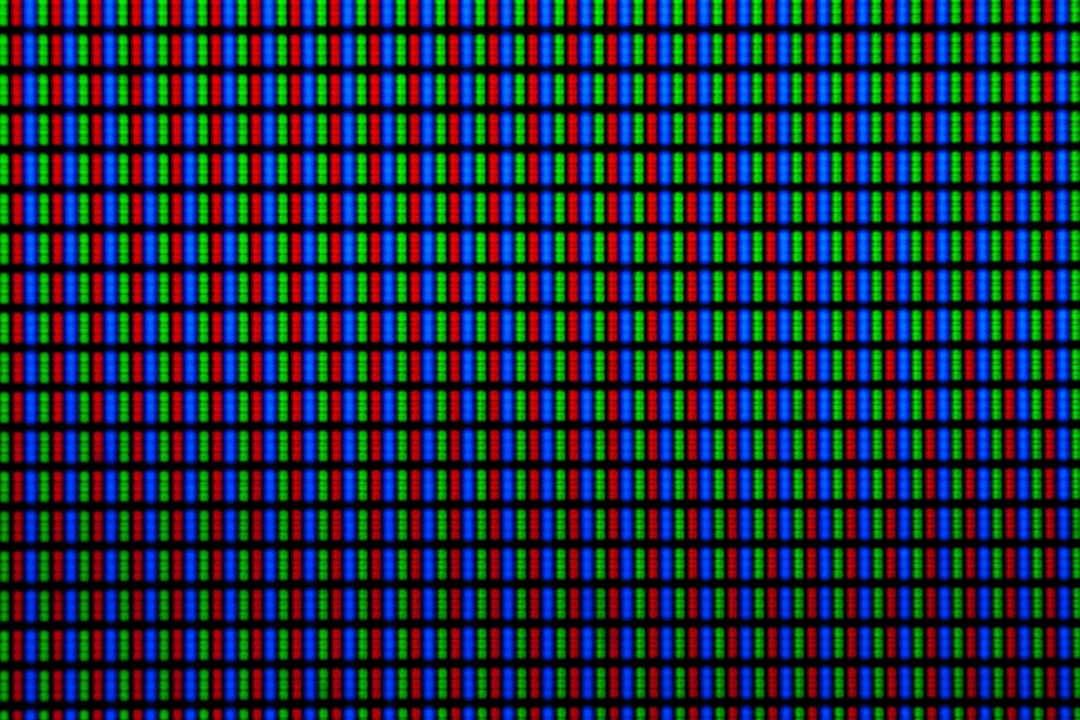
For very small screens or subtle damage, using a magnifying glass or digital microscope can help verify if a pixel is entirely black and not just discolored.
5. Take a Screenshot
Try taking a screenshot of the area you suspect and view it on another screen. If the spot disappears, it’s likely a pixel or hardware issue and not a software glitch.
Dead Pixel vs. Stuck Pixel: How to Tell the Difference
While both issues are frustrating, it’s important to differentiate:
- Dead pixels are black and do not light up at all.
- Stuck pixels retain a single color (often red, blue, or green) and may be resolved with pixel-fixing software.

Is It Really a Problem?
Whether a dead pixel is considered problematic often depends on its location and number. One dead pixel in a far corner may not be noticeable during daily tasks, whereas one in the center can be immensely distracting. Many manufacturer warranties specify a minimum number of dead pixels required before a screen qualifies for replacement.
Can Dead Pixels Be Fixed?
In most cases, truly dead pixels (those that are black and do not light up at all) cannot be repaired. However, some users try the following methods:
- Gently rubbing the affected area with a soft cloth to “massage” the pixel
- Running pixel cycling software for several hours
- Performing a power reset or firmware update (rare cases)
Still, there is no guaranteed way to resurrect a dead pixel. If it’s bothersome, contacting the manufacturer or retailer to check return or warranty policies is advisable.
Preventing Dead Pixels
There’s no foolproof method to avoid dead pixels, but a few best practices may help reduce the risk:
- Always use a screen protector to minimize physical stress
- Avoid pressing directly on the display surface
- Store and transport devices in protective cases
- Keep screens clean to ensure clear pixel detection
Conclusion
Discovering a dead pixel on a screen can be disheartening, especially on a new or expensive device. However, identifying a dead pixel is relatively simple with the right tools and techniques. Whether you’re troubleshooting a laptop, smartphone, or television, understanding the difference between stuck and dead pixels, using solid colors for inspection, and knowing when to call support can save time and stress in the long run.
FAQ: Identifying Dead Pixels
- Q: Can dead pixels spread?
A: No, dead pixels do not multiply or spread. Each pixel operates independently, so a dead one doesn’t affect neighboring pixels directly. - Q: How can I tell if a pixel is stuck or dead?
A: A dead pixel appears black on every background, while a stuck pixel may display red, green, or blue and can sometimes be fixed with software. - Q: Will my manufacturer replace my screen for one dead pixel?
A: It depends on the brand. Some have pixel policies allowing for one or two dead pixels, while others require a certain number before approving a replacement. - Q: Can leaving a device on for too long cause dead pixels?
A: Not typically. Excessive heat or age can contribute, but routine use shouldn’t result in dead pixels alone. - Q: Are OLED and LED screens equally prone to dead pixels?
A: Both types can suffer from pixel issues, although OLED screens are more prone to burn-in and pixel degradation under certain conditions.