
Start with the Xfinity gateway admin page at 10.0.0.1, then check DNS and Wi-Fi signal before replacing any hardware. Most Comcast/Xfinity gateways use this local address for the Admin Tool, with the default login often listed as admin and password until changed [source: Xfinity]. If your internet feels slow, drops often, or only works in one room, the fix is usually buried in router settings, not in your laptop.
TLDR: Open http://10.0.0.1, sign in, and check your Wi-Fi name, password, connected devices, and DNS settings. If pages take 8 to 12 seconds to load but speed tests look fine, try switching DNS to 75.75.75.75 and 75.75.76.76, or test a public DNS option. For example, a family with 14 connected devices may see buffering because one console is downloading a 60 GB game, not because the router is “broken.” Use the Xfinity app and a Wi-Fi analyzer before calling support.
1. Get Into the Xfinity Admin Tool
Connect to your home Wi-Fi first. Then open a browser and type:
http://10.0.0.1
If the page loads, sign in. Many gateways use:
- Username: admin
- Password: password
If that fails, someone may have changed it. Good. That is safer. If you cannot remember it, you may need to reset the gateway. Hold the reset button for about 30 seconds. Expect to waste time on this part. It can take several minutes for the gateway to reboot and rebuild the connection.
Do not reset the router first unless you have to. A reset wipes custom Wi-Fi names, passwords, port rules, and other settings.

2. Check the Router Lights Before Changing Settings
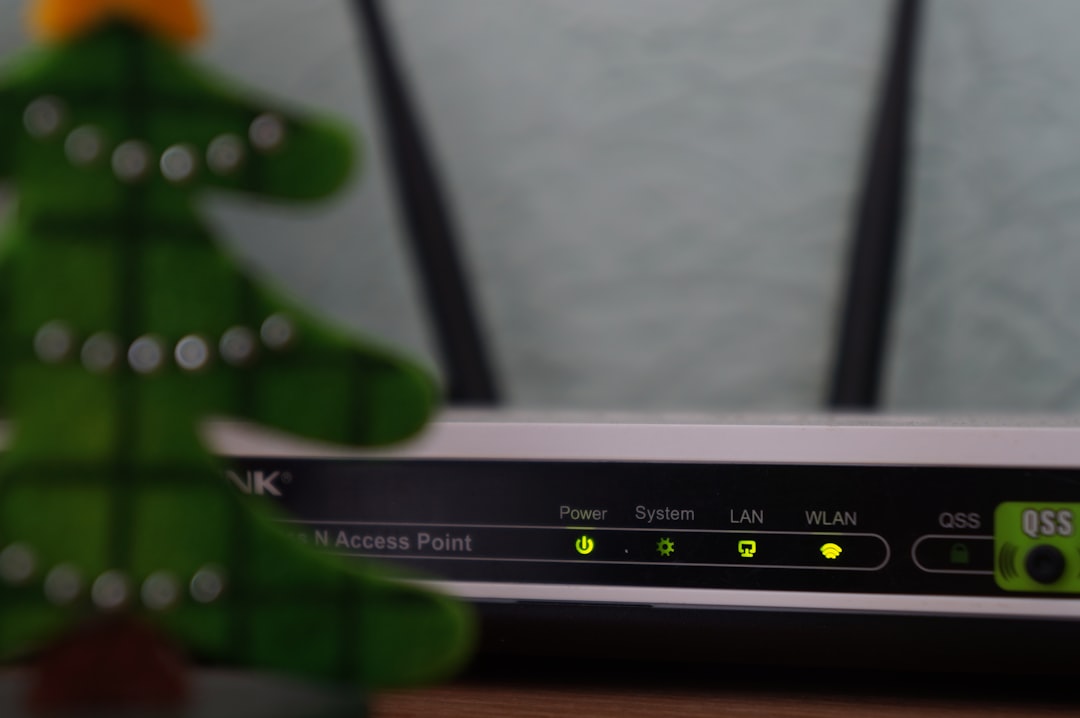
Router lights tell a quick story. A steady white light usually means the gateway is online. Blinking lights can mean startup, pairing, or signal trouble. Red or orange lights often point to service or wiring issues.
Try these basic checks:
- Make sure the coax cable is tight at the wall and gateway.
- Unplug the gateway for 60 seconds, then plug it back in.
- Wait 5 to 10 minutes before testing again.
- Test with one device close to the router.
- Use Ethernet if possible to separate Wi-Fi trouble from internet trouble.
If Ethernet is fast but Wi-Fi is poor, your Comcast internet is probably fine. The issue is wireless coverage, interference, or device overload.
3. Fix DNS Problems
DNS turns website names into IP addresses. When DNS acts up, the internet feels broken even when your connection is technically online. You may see pages hang, apps stall, or websites load only after refreshing.
Comcast commonly uses these DNS servers:
- Primary DNS: 75.75.75.75
- Secondary DNS: 75.75.76.76
Some Xfinity gateways do not let you change DNS directly in the gateway settings. Honestly, that feels more annoying than it should. If your model blocks DNS changes, set DNS on your computer, phone, game console, or your own router.
Popular test options include:
- Google DNS: 8.8.8.8 and 8.8.4.4
- Cloudflare DNS: 1.1.1.1 and 1.0.0.1
- Comcast DNS: 75.75.75.75 and 75.75.76.76
Change one thing at a time. Then test the same three websites. If they load faster and stop timing out, DNS was likely the problem.

4. Use the Xfinity App for Quick Tests
The Xfinity app is useful for simple checks. You can restart the gateway, view connected devices, run speed tests, and sometimes detect service outages. It is not perfect. It can lag, and a restart command may sit there for 20 seconds doing nothing. Still, it is faster than waiting on hold.
Check for these items in the app:
- Outage alerts: If your area has an outage, router changes will not help.
- Device list: Look for unknown phones, TVs, or laptops.
- Speed test: Compare gateway speed to device speed.
- Pause controls: Make sure your device was not paused by mistake.
If gateway speed is 800 Mbps but your phone gets 45 Mbps in the bedroom, the problem is Wi-Fi reach. Move the gateway higher, away from thick walls, and away from microwaves or metal shelves.
5. Use Wi-Fi Diagnostic Tools
A Wi-Fi analyzer app can show nearby networks and signal strength. On Windows, you can also run:
- ipconfig /all to view DNS and gateway details.
- ping 10.0.0.1 to test your router connection.
- ping 8.8.8.8 to test internet reach.
- nslookup xfinity.com to test DNS response.
On Mac, use Network Settings, Wireless Diagnostics, or Terminal commands like ping and traceroute.
Signal strength matters. Around -30 dBm is excellent. Around -67 dBm is still good for streaming. Around -80 dBm is weak. At that point, video calls can freeze and smart TVs may buffer.

6. When to Use Bridge Mode
If you own a better router or mesh system, bridge mode may help. Bridge mode turns the Xfinity gateway into a modem-style device and lets your own router handle Wi-Fi, DNS, and advanced settings.
This is useful if you want stronger parental controls, custom DNS, better coverage, or cleaner device management. Just know that some Xfinity gateway features may stop working once bridge mode is on.
Final Fix Checklist
- Open 10.0.0.1 and confirm router access.
- Restart the gateway before changing deeper settings.
- Check cables, lights, and outage alerts.
- Test Comcast DNS or another trusted DNS provider.
- Compare Ethernet speed with Wi-Fi speed.
- Scan for weak signal and crowded channels.
- Use bridge mode if your own router is better.
Most Xfinity router problems come down to three things: bad signal, messy DNS, or too many devices fighting for airtime. Fix those first. Save the factory reset for last.


