Have you ever found yourself squinting at a bright screen while solving math problems late at night on DeltaMath? If yes, you’re not alone. We all love our eyes, and thankfully, dark mode is a real thing—and it can help.
TL;DR: DeltaMath doesn’t have an official built-in dark mode (sad face), but that doesn’t mean you’re stuck with the glare. There are easy ways to enable a dark theme using browser extensions. These tools flip bright colors into soothing dark ones—perfect for those midnight practice sessions. Keep reading for the step-by-step fun!
🎯 Why Go Dark?
- Saves your eyes from burning out.
- Lowers brightness so you don’t wake the whole room.
- Looks cool. Admit it. It just does.
We all know DeltaMath is super useful. Whether you’re mastering geometry or wrestling with calculus, it’s got you covered. But it comes with a catch: a bright, white background that can be harsh, especially in dim rooms.
Ready to flip that blinding white into sleek black? Let’s go!
🛠️ Option 1: Use a Browser Extension
This is the easiest and fastest way to get dark mode on DeltaMath.
Step-by-step:
- Open your browser.
(Recommended ones: Chrome, Firefox, Edge) - Go to the web store or add-ons site.
For Chrome: Chrome Web Store - Search for: “Dark Reader”
- Click “Add to Chrome” (or your browser)
- Go to DeltaMath.com
- Activate Dark Reader from your browser toolbar
Boom. The white turns black. The text flips to white. And your eyes sigh with relief.
🧩 Extra Tip: Customize the Dark Mode
Dark Reader isn’t just a switch. It’s a full control panel.
- Adjust brightness: Make it super dark or just a bit dim.
- Fine-tune contrast: Make text pop the way you like.
- Choose fonts: If you want cozy, clean letters.
It also lets you turn off dark mode for specific sites if needed. You’re in total control.
💡 Option 2: Use a Dark Mode Feature in Your Operating System
If you’re using newer versions of Windows or macOS, this might actually help!
On Windows:
- Go to Settings > Personalization > Colors
- Scroll down to Choose your default app mode
- Select Dark
On macOS:
- Click the Apple menu
- Go to System Preferences > General
- Select Dark under Appearance
This doesn’t always make web pages dark (that depends on the site), but it’s worth a shot and looks great with other apps!
🎭 Option 3: Use Stylish for a Custom Dark Theme
Feeling creative? Stylish is another plugin that customizes how websites look.
Here’s what to do:
- Install Stylish from the extension store
- Visit DeltaMath.com
- Click the Stylish icon in your browser
- Browse available themes or write your own CSS
You might find themes made by other students or create something totally unique. Neon blue text on charcoal background? Go for it!
🚫 What About DeltaMath’s Built-in Theme Settings?
Unfortunately, DeltaMath does not currently offer a native dark mode. There’s no toggle in the settings (we looked everywhere).
But who knows? If enough of us request it… maybe one day!
How to send feedback to DeltaMath:
- Click on the Help or Contact button at the bottom of the main page
- Ask politely for a dark mode feature
- Add a reason like: “My eyeballs say thanks!”
📱 What About Mobile Dark Mode?
Using DeltaMath on your phone? Here’s what to try:
On Android:
- Set your device theme to Dark Mode
- Use Samsung Internet, Kiwi Browser or another that supports extensions
- Add Dark Reader from the browser settings
On iPhone:
- Set system to Dark Mode in Settings > Display
- Use the Safari browser
- Try enabling dark mode with Reader View if available
Note: It’s a bit trickier on mobile, but still doable with the right apps and settings.
🎉 Final Thoughts
So even though DeltaMath doesn’t have a built-in dark mode, you’ve got great options:
- Browser extensions: Easy and powerful (Dark Reader wins!)
- System settings: Helps in some places
- Stylish plugin: For full theme creativity
Don’t let that eye-burning white screen slow down your learning. Go dark, stay comfy, and crunch math in style—day or night!
Now grab your calculator and glow gently in the night. 🖤
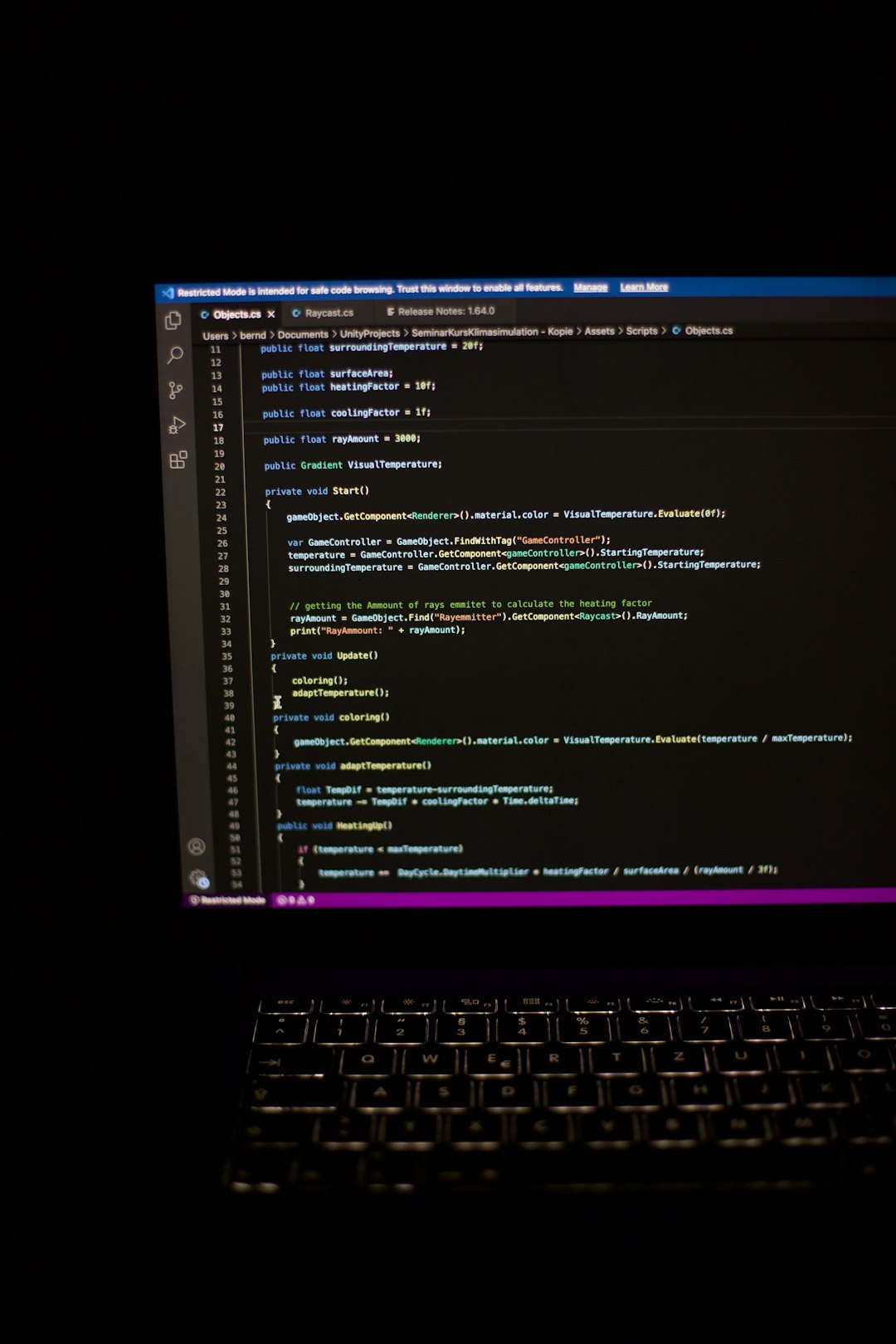
 student using laptop, dark screen, math homework[/ai-img>