The Facebook Mac app is here to make your social media life a little easier—and smoother. Whether you’re checking messages, watching videos, or just lurking your feed, having Facebook as a standalone app on your Mac can be a game-changer. If you’re wondering how to get started or why you should bother, this guide will walk you through it all step by step.
TL;DR
Facebook now works great as a Mac app. It’s fast, organized, and saves you from browser clutter. With helpful features like instant notifications and a cleaner layout, it’s a solid way to stay connected. We’ll show you how to download it, use it, and make it work for you.
What is the Facebook Mac App?
The Facebook Mac app is not something you download from the App Store (at least, not yet). Technically, it’s a Progressive Web App (PWA). That means you can turn the Facebook website into a desktop app using your browser.
Sounds techy? Don’t worry, it’s actually pretty simple.
Why Use the Facebook App on Mac?
Here’s why the Mac app version of Facebook is awesome:
- Distraction-free: No tabs, no clutter, just Facebook.
- Faster access: Open it with one click like any other app.
- Notifications: Get instant Mac notifications when someone pokes you (yes, that still exists).
- Better multitasking: Works side-by-side with your other apps.
If you spend a lot of time on Facebook, this will save you clicks—and patience.
How to Set It Up (Step-by-Step)
Option 1: Using Microsoft Edge
- First, download Microsoft Edge if you don’t have it yet.
- Go to www.facebook.com.
- Click the three-dot menu in the top-right corner of Edge.
- Hover over Apps, then select Install this site as an app.
- Give the app a name (maybe just “Facebook”) and click Install.
That’s it! You’ll get a new Facebook app icon in your Applications folder and Dock.
Option 2: Using Chrome (Similar Process)
You can also do the same with Google Chrome:
- Open Chrome and navigate to facebook.com.
- Click the three-dot menu in the top-right corner.
- Select Save and share (or “More tools” in some versions).
- Click Create shortcut or Install Facebook.
- Make sure “Open as window” is checked.
Done! You now have Facebook as an independent app on your Mac.

Using the Facebook Mac App
Once it’s installed, using the app is a breeze.
Here are a few things you can do:
- Post updates as usual—text, photos, GIFs, everything.
- Chat with friends without opening Messenger in a new tab.
- Scroll your news feed in peace—and without browser lag.
- Watch videos and live streams just like you normally would.
It works exactly like the website, but it feels snappier and more focused.
Cool Features You’ll Love
There are a few Mac-specific benefits when using this web app:
- Dock support: Pin Facebook to your Dock for one-click access.
- Window sizing: Resize and organize like any other app.
- Native notifications: Get badge updates and banner alerts.
And yes, you can use keyboard shortcuts. For example, press J and K to scroll through posts quickly.
What About Messenger?
If you use Messenger a lot, you can also install it as its own app—just go to messenger.com and follow the same steps you used for Facebook.
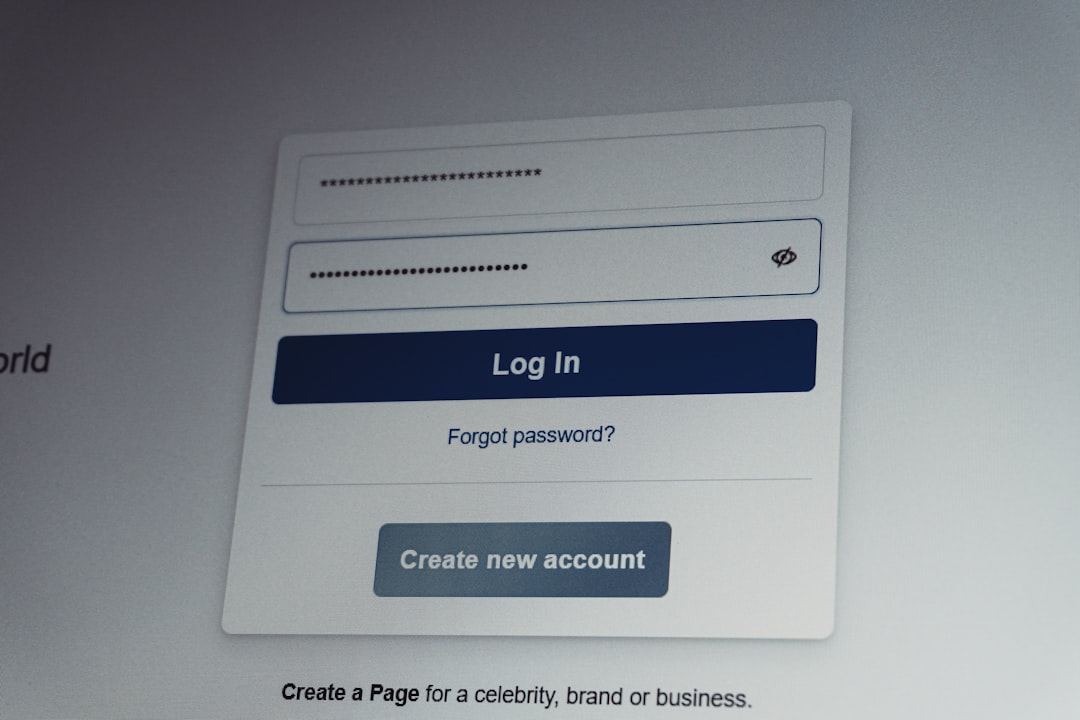
This separates chatting from scrolling, which can help you stay focused. Perfect for work or study breaks (no judgment here).
Managing Notifications
Notifications are cool—until they get out of hand.
Here’s how to tweak them on your Mac:
- Go to System Settings → Notifications.
- Find your Facebook app from the list.
- Customize alert style, sounds, and badges.
You can also control Facebook notifications within the app itself. Click your profile icon, go to Settings & Privacy, then Settings → Notifications.
How to Update or Remove the App
Since it’s a web app, there’s no need to update it—the changes happen automatically on Facebook’s end.
If you ever want to delete the app:
- Open Finder, go to Applications.
- Find your Facebook app and drag it to the Trash.
That’s it—goodbye until you change your mind again.
Tips for Power Users
Want to go beyond the basics? Here are a few pro tips:
- Use shortcuts: Try Shift + ? to view all keyboard shortcuts.
- Mute distractions: Use Focus Modes on macOS when you don’t want alerts.
- Split Screen: Use Facebook on one side and Zoom or Notes on the other.
- Switch accounts: Log out and log into different user accounts if needed.
Is It Safe?
Yes! Since it runs in a browser shell, it’s as safe as using Facebook in your browser. That said, always log out if you’re on a shared machine.
And be careful of phishing—only log into the real facebook.com.
Final Thoughts
The Facebook Mac app is a small tweak that can make a big difference. It’s fast, clean, and adds a little simplicity to your digital life. Whether you’re a casual user or a newsfeed ninja, having it as a standalone app is a smart move.
Give it a try—you might never go back to browser mode again!