Web accessibility is no longer a “nice to have.” It is a must. Millions of people use assistive tools to browse the web every day. If your website is hard to use, you lose visitors. You may also risk legal trouble. The good news? Accessibility plugins can help. They are simple tools that improve usability and support compliance without needing a full redesign.
TLDR: Accessibility plugins make websites easier to use for everyone, including people with disabilities. They help with screen readers, color contrast, text size, and keyboard navigation. Many plugins also support compliance with standards like WCAG and ADA. Below are five excellent plugins that can make your site more inclusive and user-friendly.
Why Website Accessibility Matters
Imagine visiting a website and not being able to read the text. Or not being able to click buttons because you cannot use a mouse. For many people, this is a daily experience.
Accessibility removes these barriers. It helps people with:
- Visual impairments
- Hearing impairments
- Motor challenges
- Cognitive disabilities
It also helps people browsing on mobile phones in bright sunlight. Or someone with a temporary injury. Accessibility improves usability for everyone.
Now let’s look at five powerful plugins that can boost your site’s accessibility fast.
1. UserWay Accessibility Widget
UserWay is a popular accessibility plugin. It adds a small widget to your website. Visitors can click it to adjust settings based on their needs.
Key Features:
- Text size adjustment
- Color contrast controls
- Keyboard navigation support
- Screen reader enhancements
- Underline links option
It is easy to install. No deep coding required. Just add a snippet or install the plugin if you use WordPress.
Why it’s great:
It puts control in the user’s hands. Visitors can customize their experience in seconds. That feels empowering.
Simple. Flexible. Beginner-friendly.
2. WP Accessibility
If you run a WordPress site, WP Accessibility is a strong option. It focuses on fixing common accessibility issues in themes.
Some themes look beautiful but fail basic accessibility checks. This plugin helps fix that.
Main Benefits:
- Adds skip links for keyboard users
- Removes redundant title attributes
- Forces alt attributes on images
- Improves form labels
- Adds contrast tools
Skip links are extremely important. They let users jump straight to the content instead of tabbing through every menu item.
Why it’s great:
It improves your site structure behind the scenes. Visitors may not see flashy changes. But they will feel the difference.
Think of it as a quiet problem-solver.
3. Accessibility Checker
Accessibility is not just about adding tools. It is also about finding errors. That is where Accessibility Checker shines.
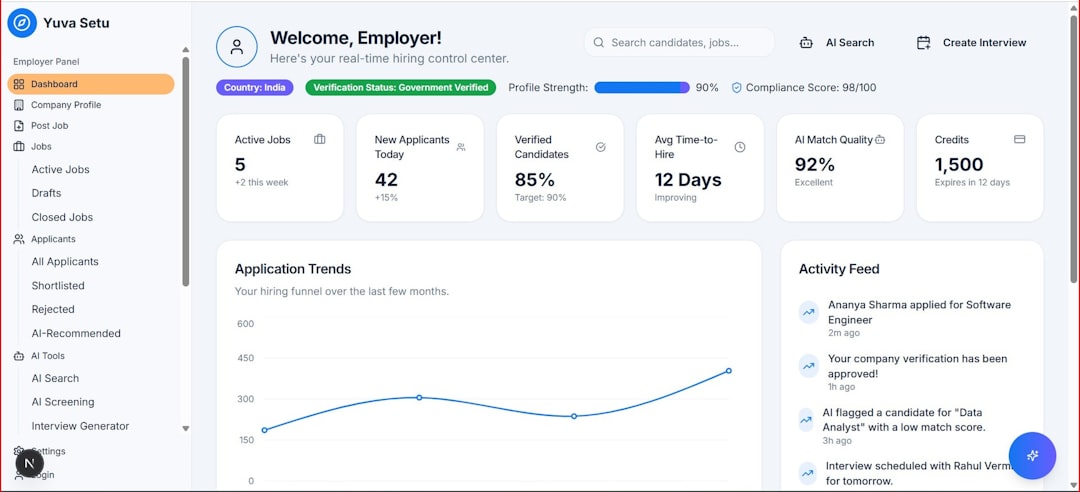
This plugin scans your content. It flags issues directly inside your dashboard.
It can detect:
- Missing alt text
- Poor contrast
- Empty links
- Improper heading structure
- Missing form labels
Imagine having a spell checker. But for accessibility. That’s what this plugin feels like.
Why it’s great:
It teaches you to build better pages. Over time, you make fewer mistakes. Your whole workflow improves.
It does not just fix problems. It helps prevent them.
4. One Click Accessibility
The name says it all. One Click Accessibility focuses on simplicity.
It adds a toolbar with helpful accessibility options. Visitors can adjust the page instantly.
Features include:
- Increase or decrease font size
- Grayscale mode
- High contrast mode
- Link highlighting
- Remove animations
Animations may look cool. But for some users, they cause discomfort. Removing them can greatly improve usability.
Why it’s great:
It is lightweight. It does not slow down your site. Installation takes minutes.
Fast setup. Immediate impact.
5. AccessiBe
AccessiBe uses AI to improve accessibility automatically. It scans your website. Then it adjusts elements to meet accessibility standards.
This includes:
- Image recognition for alt text
- Improved keyboard navigation
- Screen reader adjustments
- Ongoing automatic scans
It continues monitoring your site. If you upload new content, it checks that too.
Why it’s great:
It offers automation. That saves time. Especially for large websites with hundreds of pages.
It works in the background so you can focus on content.

How These Plugins Help with Compliance
Many countries have accessibility laws. In the U.S., there’s the ADA. Globally, there are WCAG guidelines.
WCAG stands for Web Content Accessibility Guidelines. These guidelines focus on four core principles. Content must be:
- Perceivable
- Operable
- Understandable
- Robust
Accessibility plugins help you move closer to these standards. They:
- Improve navigation
- Strengthen contrast
- Ensure proper labeling
- Enhance screen reader support
Are plugins alone enough for full compliance? Not always. But they are a powerful step in the right direction.
Tips for Choosing the Right Plugin
Not all websites have the same needs. Before installing a plugin, ask yourself a few questions.
1. What platform are you using?
Some plugins are built specifically for WordPress.
2. Do you want automation or control?
AI-based tools automate fixes. Manual plugins give users direct settings.
3. What is your budget?
Some plugins are free. Others offer premium plans with advanced features.
4. Do you want visible widgets?
Some add toolbars to your site. Others work quietly in the background.
Choose based on your audience. And test everything after installation.
Accessibility Is Also Good for Business
Let’s talk numbers. Over one billion people worldwide live with some form of disability. That is a huge audience.
If your website is difficult to use, they may leave. And never return.
Accessible websites:
- Reach more customers
- Improve SEO
- Reduce bounce rates
- Increase trust
Search engines love well-structured content. Proper headings. Alt text. Clear navigation. These are all accessibility best practices. They also improve rankings.
Better access often means better performance.
Common Mistakes to Avoid
Installing a plugin is not the finish line. Avoid these common errors:
- Ignoring alt text on new images
- Using low-contrast brand colors
- Uploading videos without captions
- Breaking keyboard navigation with custom code
Accessibility is ongoing. Review your site often. Run scans. Get feedback from real users if possible.
Final Thoughts
Website accessibility does not have to be scary. It does not have to be complex. With the right plugin, you can make huge improvements quickly.
Start small. Install one tool. Test it. Learn from it.
Remember, accessibility is about people. It is about making sure everyone can read, click, watch, and engage.
Inclusive websites are better websites.
Choose one of the five plugins above. Take action today. Your visitors will thank you. And your site will be stronger because of it.