There are few things more frustrating than turning on your computer, hearing it power up normally, and then being greeted by a blank screen that says “No Signal”. If you own an Acer desktop monitor and are facing this issue, don’t panic. In most cases, the problem is not serious and can be fixed with straightforward troubleshooting steps. Whether the issue lies with cables, display settings, hardware components, or the monitor itself, this guide will walk you through everything you need to know.
TL;DR: If your Acer desktop monitor shows “No Signal,” first check your cables and power connections. Make sure the correct input source is selected and try restarting both the monitor and the PC. If that doesn’t work, test your monitor and cables on another device or inspect your PC’s graphics card and RAM. Most “No Signal” issues are caused by loose connections or incorrect input settings, not a broken monitor.
What Does “No Signal” Actually Mean?
When your Acer monitor displays a “No Signal” message, it means that the screen is powered on but isn’t receiving video data from the computer. The monitor itself may be working perfectly — it simply isn’t getting the signal it needs to display an image.
This can happen due to:
- Loose or damaged video cables
- Incorrect input source selected
- Graphics card problems
- RAM or motherboard issues
- Monitor hardware faults
Understanding these possible causes makes troubleshooting much easier.
Step 1: Check the Basics First
Start with the simplest solutions before diving into hardware repairs.
1. Ensure Everything Is Powered On
- Confirm the monitor’s power light is on.
- Check that your PC tower is powered and fans are spinning.
- Make sure your power cables are securely plugged in.
It might sound obvious, but power issues are surprisingly common.
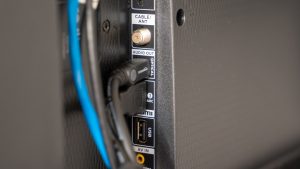
2. Inspect the Video Cable
A loose or damaged cable is one of the most common causes of a no-signal error.
Check the cable at both ends — where it connects to the monitor and to the PC. Unplug the cable and firmly reconnect it. Look for:
- Bent pins (especially with VGA cables)
- Frayed insulation
- Loose HDMI or DisplayPort connectors
If possible, try using a different cable to rule out cable failure.
Step 2: Check the Input Source
Your Acer monitor may display “No Signal” simply because it is set to the wrong input source.
For example, your PC may be connected via HDMI, but the monitor is currently set to VGA or DisplayPort.
How to Fix It:
- Press the Menu button on the monitor.
- Navigate to the Input Source or Source option.
- Select the correct port (HDMI, VGA, DVI, DisplayPort).
Many Acer monitors also have an Auto Source feature that automatically detects the incoming signal.
Step 3: Restart Everything Properly
A full power reset can clear minor hardware glitches.
Power Reset Procedure:
- Turn off your monitor.
- Shut down your computer.
- Unplug both devices from power.
- Wait 2–3 minutes.
- Plug everything back in and restart.
This simple reset can resolve many temporary signal communication problems between devices.
Step 4: Test the Monitor and PC Separately
If the monitor still displays “No Signal,” it’s time to determine which device is responsible.
Test the Monitor
- Connect the monitor to a different computer or laptop.
- If it works, the issue lies with your original PC.
- If it still shows no signal, the monitor may be faulty.
Test the PC
- Connect your PC to another monitor.
- If it works fine, your Acer monitor may need servicing.
- If it still fails, the PC hardware may be the problem.
This step isolates the issue and prevents unnecessary repairs.
Step 5: Inspect Internal PC Components
If the issue appears to be coming from the PC, internal hardware checks may be necessary.
1. Check the Graphics Card
If your computer uses a dedicated graphics card:
- Turn off and unplug the PC.
- Open the case carefully.
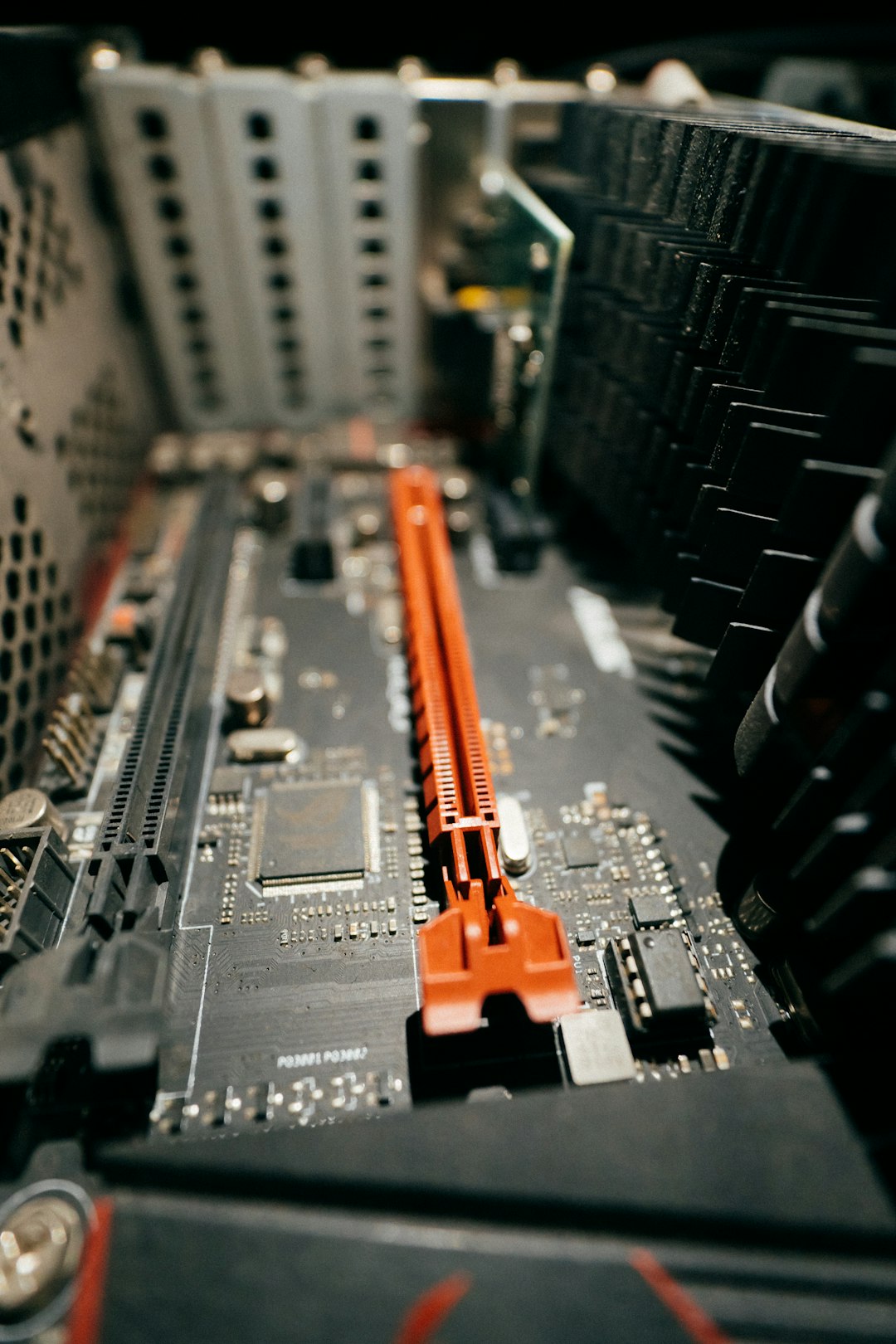
- Ensure the graphics card is fully seated in its PCIe slot.
- Check that power connectors are securely attached.
If your motherboard has integrated graphics, try plugging the monitor directly into the motherboard’s video port instead of the graphics card.
2. Reseat the RAM
Surprisingly, faulty or loose RAM can also cause a no-display issue.
- Remove the RAM sticks.
- Clean dust gently if necessary.
- Reinsert them firmly until they click into place.
3. Listen for Beep Codes
If your PC makes beeping sounds during startup, those sounds may indicate hardware errors. Check your motherboard manual to decode them.
Step 6: Check Display Resolution Issues
Sometimes the PC is sending a display resolution or refresh rate that your Acer monitor cannot handle.
To fix this:
- Boot into Safe Mode.
- Lower the display resolution.
- Restart normally.
If the monitor works in Safe Mode, the issue is likely related to graphics drivers or display configuration.
Step 7: Update or Reinstall Graphics Drivers
Corrupt or outdated graphics drivers can prevent your monitor from receiving a signal.
If you can access your system (perhaps through another monitor):
- Open Device Manager.
- Expand Display Adapters.
- Update or uninstall and reinstall the driver.
Restart the computer after reinstalling to allow proper detection of your Acer monitor.
Common Cable Types Comparison
Using the right cable matters. Here’s a quick comparison of common display cables:
| Cable Type | Video Quality | Audio Support | Common Issues |
|---|---|---|---|
| VGA | Analog, lower resolution | No | Bent pins, signal interference |
| DVI | Digital, good quality | No (usually) | Loose connectors |
| HDMI | High definition | Yes | Compatibility settings |
| DisplayPort | Very high resolution | Yes | Locking tab issues |
If possible, switching from VGA to HDMI or DisplayPort can significantly improve reliability and picture clarity.
When to Suspect a Monitor Hardware Failure
Although rare, hardware failure can occur.
Signs your Acer monitor may be faulty:
- Power light turns on but screen stays black at all times.
- No on-screen menu appears when pressing monitor buttons.
- Monitor works intermittently regardless of cable or PC used.
In these cases, professional repair or replacement may be necessary.
Preventing Future “No Signal” Problems
Once your monitor is working again, consider these preventative measures:
- Secure cables with cable management clips.
- Avoid excessive bending of HDMI or VGA cables.
- Keep PC interior clean from dust buildup.
- Update graphics drivers regularly.
- Use a surge protector to prevent electrical damage.
Routine maintenance can save hours of troubleshooting later.
Final Thoughts
An Acer desktop monitor showing “No Signal” may seem alarming, but it’s usually caused by simple connection issues or minor hardware miscommunication. By methodically checking cables, verifying input sources, testing components, and inspecting internal hardware, you can often resolve the problem without professional help.
Patience and systematic troubleshooting are key. Start small, work your way through each step, and resist the urge to assume the worst. In most cases, the fix is much easier than it appears — and your monitor will be back to displaying your desktop in no time.