A computer monitor that suddenly goes black can be alarming. Whether you are in the middle of an important presentation, finishing work on a deadline, or simply browsing the web, a black screen often feels like a major failure. However, in many cases, the cause is far less dramatic than it seems. Understanding the potential reasons behind a black monitor and knowing how to respond can save you time, money, and unnecessary stress.
TL;DR: A monitor that goes black is usually caused by loose cables, power supply issues, graphics card problems, or software errors—not immediate hardware failure. Start by checking connections, testing another display, and restarting your system in safe mode. If basic troubleshooting fails, deeper hardware diagnostics may be needed. Be cautious of online “support” pop-ups and unsolicited calls, as monitor issues are commonly used in tech support scams.
Common Reasons Your Monitor Goes Black
A black screen does not always mean your monitor is broken. In fact, the monitor is often the least likely component to fail. Below are the most frequent causes.
1. Loose or Damaged Cables
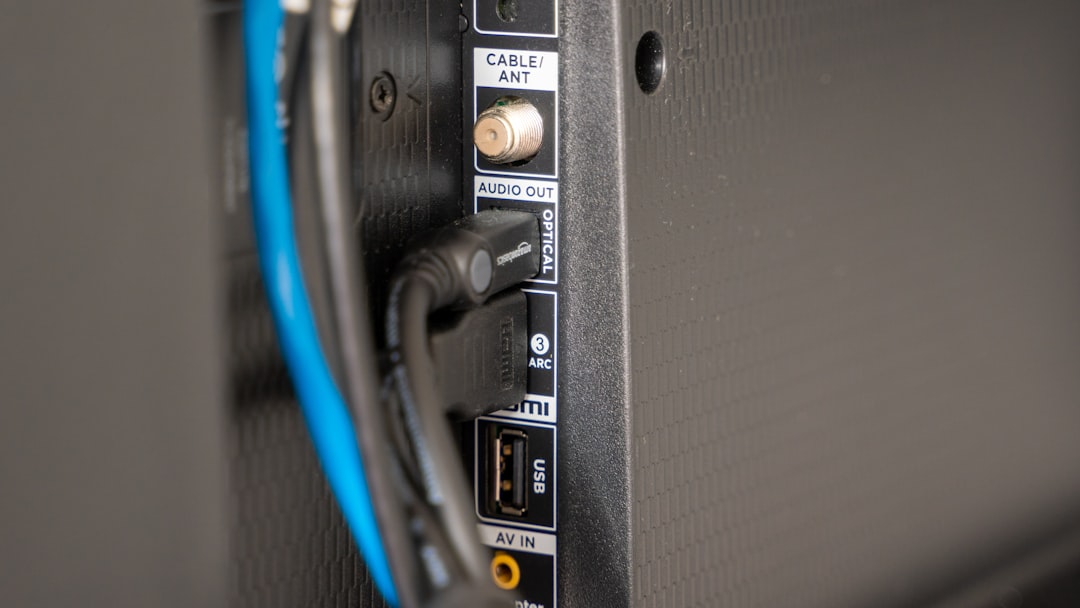
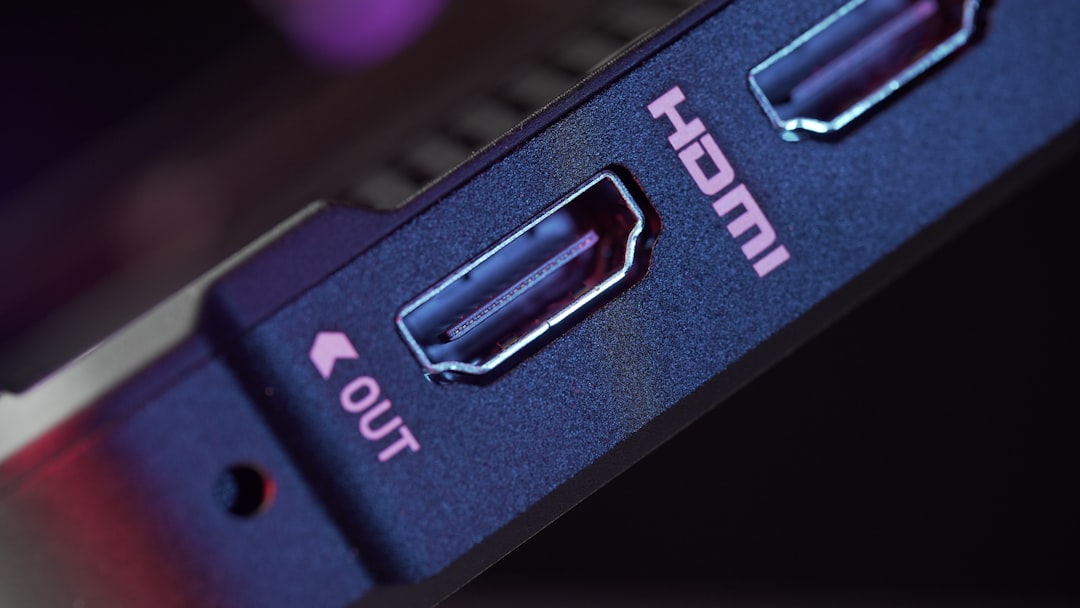
This is the most common and easiest-to-fix issue. If the video cable (HDMI, DisplayPort, DVI, or VGA) becomes loose or damaged, the monitor will lose signal and turn black.
- Loose HDMI or DisplayPort connection
- Damaged or bent cable connectors
- Worn-out cables
- Incorrect input source selected on the monitor
Fix:
- Turn off the computer and monitor.
- Disconnect and firmly reconnect both ends of the cable.
- Try a different cable if available.
- Switch the monitor input source manually.
2. Power Supply Problems
If the monitor’s power light is off or flickering, the issue may be electrical. A faulty power cable, surge protector failure, or internal power supply damage can cause random blackouts.
Fix:
- Plug the monitor directly into a wall outlet.
- Test a different power cable if it is detachable.
- Inspect for burn smells or unusual sounds.
If the monitor has power but still shows a black screen, the issue may lie elsewhere.
3. Graphics Card Issues
Your graphics processing unit (GPU) handles video output. If it fails or overheats, your monitor may suddenly go dark.
Signs of GPU problems include:
- Screen flickering before turning black
- Artifacts (strange lines or shapes)
- System crashes during gaming or video editing
- Fans running loudly
Fix:
- Restart your computer.
- Boot into Safe Mode.
- Update or reinstall graphics drivers.
- Reseat the graphics card (for desktop PCs).
- Monitor GPU temperatures using system tools.
4. Sleep Mode or Power Settings
Sometimes the monitor goes black simply because the system has entered sleep mode or turned off the display automatically.
Fix:
- Move your mouse or press a key.
- Check power and sleep settings in your operating system.
- Disable screen timeout temporarily for testing.
5. Operating System or Driver Errors
A recent update or corrupted driver may prevent proper video output. Windows and macOS updates occasionally introduce compatibility issues.
Fix:
- Boot in Safe Mode.
- Roll back recent updates.
- Reinstall display drivers.
- Run system file repair tools.
6. Failing Monitor Hardware
If you have ruled out cables, power, and GPU issues, the monitor itself may be failing. Common internal failures include:
- Backlight burnout
- Inverter damage
- Internal capacitor failure
A quick flashlight test can help. Shine a flashlight closely at the screen while it is powered on. If you faintly see your desktop, the backlight may be dead.
Step-by-Step Troubleshooting Guide
Follow this logical sequence before assuming the worst:
- Check power: Confirm power light is on.
- Inspect cables: Reconnect or replace display cables.
- Test another device: Connect your monitor to another computer.
- Test another monitor: Connect a different display to your computer.
- Update drivers: Use Safe Mode if needed.
- Reset BIOS/UEFI settings: If display fails during startup.
This process isolates the problem efficiently and prevents unnecessary replacements.
Laptop Screen Goes Black but Computer Is Running
If your laptop’s screen turns black but you can hear fans or system sounds, the issue may differ slightly from a desktop monitor problem.
Possible causes include:
- Loose internal display connector
- Backlight failure
- Faulty RAM
- Operating system crash
Try this:
- Connect to an external monitor.
- Perform a hard reset (remove battery if possible).
- Reseat RAM modules (if you are comfortable opening the laptop).
When It Happens Randomly During Use
If the screen goes black intermittently, consider environmental and system factors:
- Overheating: Clean dust from fans and vents.
- Driver conflicts: Recent installations may be unstable.
- Power fluctuations: Use a surge protector or UPS.
- High refresh rate mismatch: Lower refresh rate temporarily.
Random black screens often stem from instability rather than complete failure.
Comparison: Common Causes and Severity
| Cause | Difficulty to Fix | Cost Risk | Common? |
|---|---|---|---|
| Loose Cable | Very Easy | Low | Very Common |
| Power Supply Issue | Easy to Moderate | Low to Medium | Common |
| Graphics Driver Error | Moderate | Low | Common |
| GPU Hardware Failure | Difficult | High | Moderate |
| Monitor Backlight Failure | Difficult | Medium to High | Less Common |
Important Scam Warnings
Unfortunately, black screen issues are frequently exploited by scammers. Understanding these tactics protects you from financial loss.
1. Fake “Critical Error” Pop-Ups
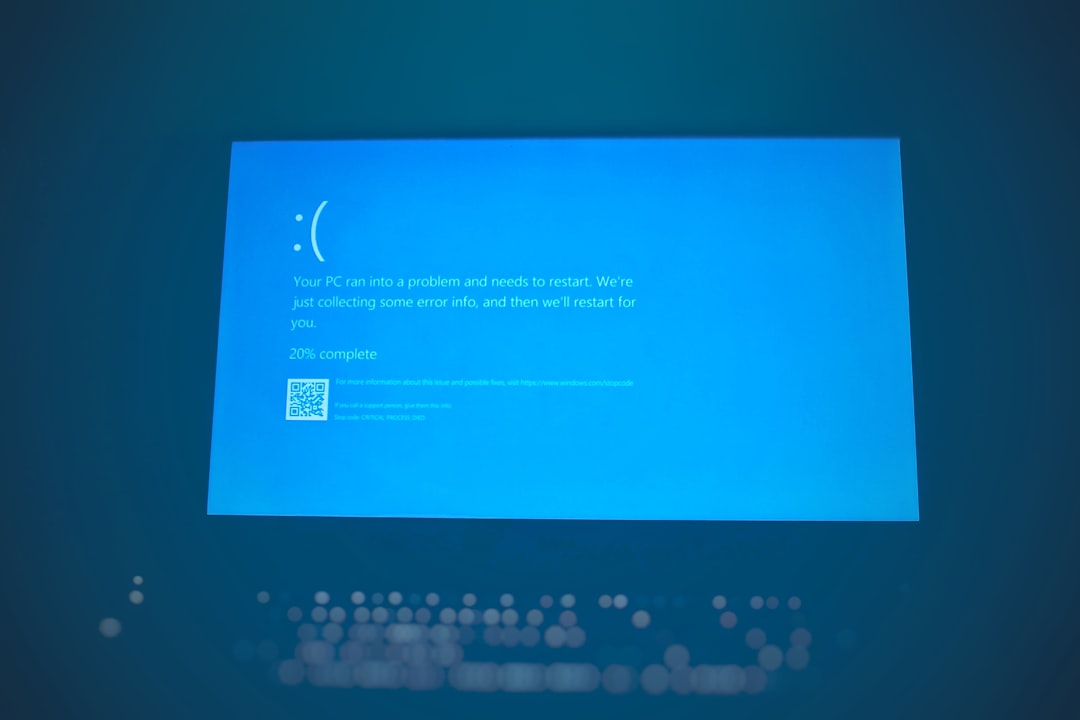
If your screen goes black and then displays a message urging you to call a phone number for “technical support,” be cautious. Operating systems do not display phone numbers in legitimate system errors.
Warning signs:
- Loud alarms or siren sounds
- Instructions not to shut down your computer
- Claims that your system is infected
- Urgent demands to call immediately
These are scare tactics.
2. Unsolicited Tech Support Calls
No legitimate company will call you unexpectedly to inform you that your monitor has an issue.
If someone:
- Claims to be from Microsoft or a well-known company
- Requests remote access
- Asks for payment in gift cards or cryptocurrency
Hang up immediately.
3. Remote Access Scams
Scammers may instruct you to install remote desktop software. Once connected, they may:
- Show you normal system logs and call them “viruses”
- Disable your display temporarily to simulate a problem
- Demand payment for a fake repair
Never grant remote access unless you initiated contact with verified support.
When to Seek Professional Help
Consider professional repair if:
- You see visible internal damage.
- The monitor smells burnt.
- Your GPU repeatedly fails under safe conditions.
- The device is under warranty.
A certified technician can test components safely and avoid further damage.
Preventing Future Black Screen Issues
Prevention reduces downtime and extends hardware lifespan.
- Use high-quality certified cables.
- Install a surge protector or UPS.
- Keep drivers updated—but avoid rushed updates immediately after release.
- Clean dust from fans and vents regularly.
- Monitor system temperatures.
Stable power and proper maintenance dramatically reduce black screen incidents.
Final Thoughts
A computer monitor going black is disruptive—but in most cases, it is manageable. The problem often stems from simple connectivity issues, power interruptions, or software errors rather than total hardware failure. By approaching the situation methodically, you can often resolve the issue without professional repair.
At the same time, stay alert to scams that exploit technical confusion and urgency. Trust verified sources, avoid panic-driven decisions, and follow structured troubleshooting steps.
A black screen is a symptom—not a diagnosis. With patience and careful testing, you can identify the root cause and restore your display safely and efficiently.