Plex has become one of the most popular media server platforms in the world, offering users a centralized way to stream movies, TV shows, music, and personal media across devices. As home entertainment systems grow more sophisticated, many users ask an important question: Does Plex support media keyboard features? Media keyboards, with their dedicated playback buttons, promise convenience and control—but not every application supports them in the same way.
TLDR: Yes, Plex supports many media keyboard features, but the level of support depends on the device, operating system, and Plex app version you are using. Basic playback controls like play, pause, next, and previous generally work on most desktop platforms. Some advanced keys and custom bindings may require additional configuration or third-party tools. Compatibility is strongest on Windows and macOS desktop environments.
Understanding Media Keyboard Features
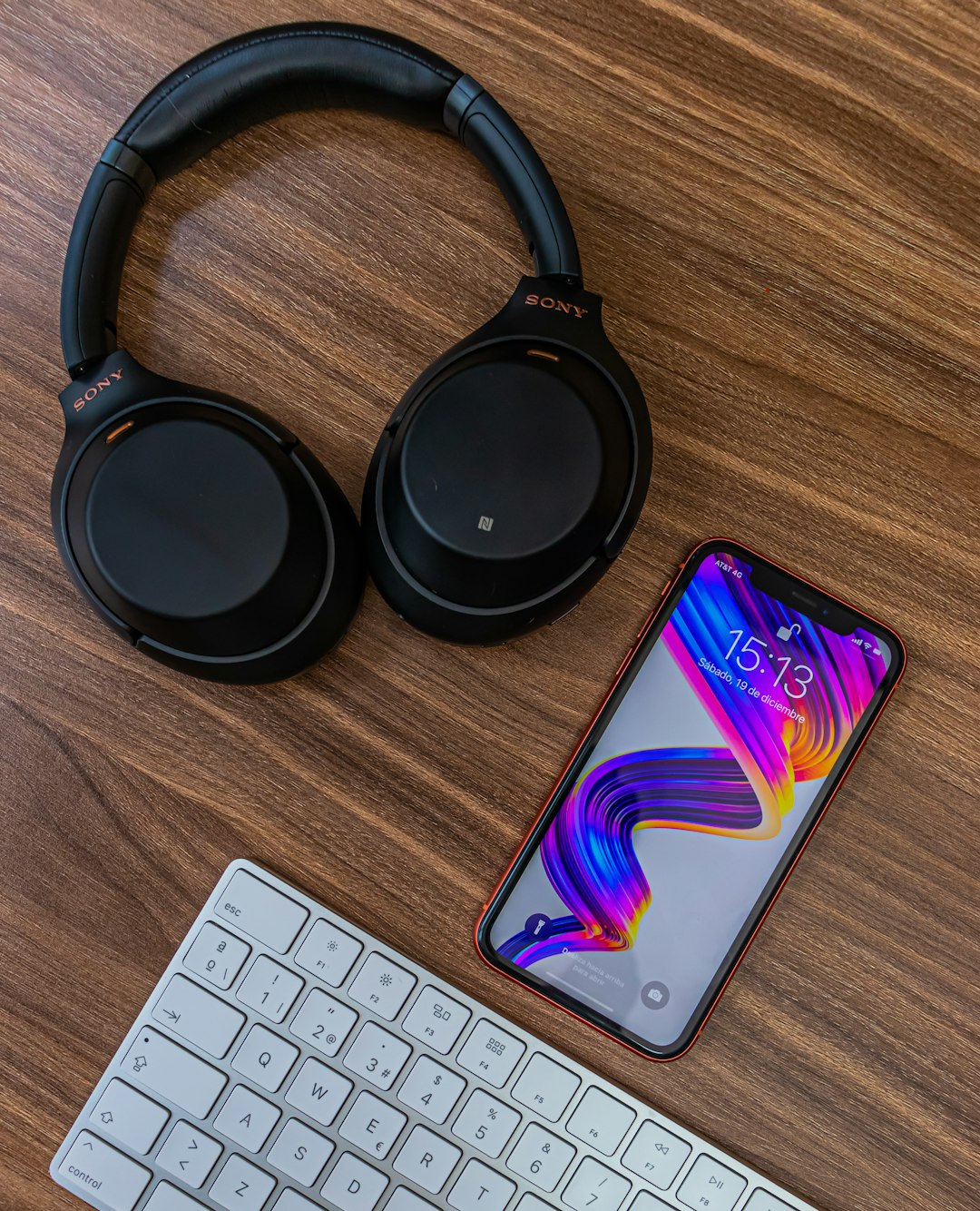
Before diving into Plex-specific support, it’s helpful to define what media keyboard features actually are. These are dedicated hardware keys found on many modern keyboards and laptops that control media playback independently of standard keyboard shortcuts.
Common media keys include:
- Play / Pause
- Stop
- Next track
- Previous track
- Volume up / down
- Mute
These keys typically communicate directly with the operating system, which then passes the command to the active media application. The way Plex reacts to these signals depends on how its app is integrated with the OS.
Plex Desktop App and Media Keyboard Support
The strongest support for media keyboard features appears in the Plex Desktop App for Windows and macOS. When using the dedicated Plex app (not just the browser version), users typically experience reliable functionality for core playback controls.
Windows
On Windows, Plex Desktop integrates with the system’s Global Media Transport Controls. This means:
- Play and pause keys respond immediately.
- Next and previous keys usually skip forward or backward in playlists (especially in music libraries).
- Volume controls adjust the system volume as expected.
- The Windows media overlay displays current playback information.
This integration makes Plex behave much like Spotify or other native media applications.
macOS
On macOS, Plex Desktop connects to the system’s Now Playing framework. Media keys on Mac keyboards—especially the touch bar or function row media keys—work smoothly in most cases.
However, behavior can depend on:
- Whether Plex is the active application.
- Competing apps that also register for media key control.
- OS-level settings prioritizing certain apps.
In situations where keys do not respond correctly, restarting Plex or adjusting macOS audio output settings often resolves the issue.
Browser-Based Plex Player
Many users access Plex through a web browser at app.plex.tv. Media keyboard support in this environment is more limited and depends heavily on the browser’s implementation.
Generally:
- Play and pause keys often work in modern browsers like Chrome and Edge.
- Next and previous track support may be inconsistent.
- Global media key control can conflict with other open tabs.
Because browsers manage media focus internally, Plex does not always receive priority. If multiple tabs are playing media, the browser decides which tab responds to media key input.
Image not found in postmetaPlex HTPC and Home Theater Use
Plex HTPC (Home Theater PC version) is specifically designed for big-screen television experiences. In these setups, users typically rely on:
- Remote controls
- Wireless keyboards
- Media center keyboards with integrated touchpads
Plex HTPC supports keyboard shortcuts and multimedia keys extensively. Play, pause, skip forward, skip back, and volume adjustments function reliably when mapped correctly.
In fact, Plex HTPC is often preferred in home theater environments because it offers:
- Predictable input handling
- Full-screen focus
- Minimal background competition from other applications
Mobile Devices and External Keyboards
On mobile platforms such as iOS and Android, Plex primarily relies on touchscreen controls. However, when using:
- Bluetooth keyboards
- Bluetooth media remotes
- Car infotainment media controls
Basic playback commands typically work as long as the operating system routes those commands correctly.
For example:
- On Android, media buttons are supported through system-level media sessions.
- On iOS, external keyboard media keys can control playback if Plex is the active audio session.
That said, mobile implementations are somewhat more restrictive than desktop platform behavior.
Server vs. Client Considerations
An important clarification: media keyboard support is entirely client-side. The Plex Media Server itself does not influence keyboard functionality.
What matters most is:
- The device running the Plex app
- The operating system
- The version of Plex you are using
- Whether you are in browser or native app mode
This distinction is essential for troubleshooting, as server configuration will not affect media key responsiveness.
Comparison Chart: Plex Media Keyboard Support by Platform
| Platform | Play/Pause | Next/Previous | Volume Keys | Notes |
|---|---|---|---|---|
| Windows Desktop App | Yes | Yes (most cases) | Yes | Strong integration with system media controls |
| macOS Desktop App | Yes | Usually | Yes | May compete with other active apps |
| Web Browser Player | Usually | Inconsistent | System controlled | Depends on browser media focus behavior |
| Plex HTPC | Yes | Yes | Yes | Highly reliable in full screen mode |
| Mobile Apps | Yes | Limited | System controlled | Relies on OS media sessions |
Customizing Media Key Behavior
Some advanced users want more control over how Plex responds to media keys. While Plex itself offers limited direct customization for hardware media keys, there are additional options:
- Third-party key mapping software on Windows
- macOS utilities to assign custom media behaviors
- Keyboard manufacturer configuration tools
These tools can remap hardware keys to specific Plex shortcuts, enhancing control in specialized workflows.
Common Issues and Troubleshooting
If your media keyboard features are not working with Plex, consider these steps:
- Ensure Plex is updated to the latest version.
- Check whether Plex is the active media application.
- Close competing media apps like Spotify or YouTube.
- Restart the Plex application.
- Verify OS media permissions if applicable.
In many cases, the issue is not Plex itself but rather the operating system prioritizing another application.
Does Plex Offer Full Multimedia Integration?
While Plex does support standard media keyboard operations, it is not designed as a fully customizable multimedia control environment. Compared to some music-focused players, Plex prioritizes cross-platform consistency and streaming reliability over deep hardware-level integration.
However, for the vast majority of users, the included support for:
- Play
- Pause
- Skip
- Volume adjustments
is more than sufficient for everyday use.
Final Verdict
Yes, Plex supports media keyboard features—particularly on desktop applications for Windows and macOS. Basic playback controls work reliably, and integration with system-level media frameworks makes the experience seamless in most environments.
Browser playback provides partial support, while mobile and HTPC setups depend more heavily on operating system handling and device configuration. Advanced customization may require third-party utilities, but standard multimedia keys function effectively in typical usage scenarios.
For users building a home theater PC or seeking convenient playback control from a desk setup, Plex delivers practical and dependable media keyboard compatibility. While not perfect in every edge case, its support is robust enough to meet the expectations of most serious media enthusiasts.