
When Thunderstore throws the error “The system cannot find the file specified”, it can abruptly interrupt mod installations or prevent games from launching properly. This issue most commonly appears while using Thunderstore Mod Manager or r2modman and is typically tied to missing directories, deleted files, incorrect paths, or antivirus interference. While the message sounds technical, the fix is usually straightforward once the root cause is identified. Understanding why it happens is the first step toward resolving it permanently.
TL;DR: The “The system cannot find the file specified” error in Thunderstore usually occurs because of missing game directories, outdated mod managers, corrupted profiles, or antivirus interference. Fixing it typically involves verifying game files, reinstalling Thunderstore Mod Manager, correcting file paths, or restoring quarantined files. Running the mod manager as administrator and ensuring the correct game directory is selected often resolves the issue quickly. Most users can fix the error in under 15 minutes by following targeted troubleshooting steps.
What Causes This Thunderstore Error?
This error appears when the mod manager attempts to access a file path that does not exist or has become inaccessible. The most common causes include:
- Incorrect game directory path
- Game moved to a different drive or folder
- Corrupted or missing mod files
- Antivirus quarantining important files
- Insufficient permissions
- Outdated Thunderstore Mod Manager or r2modman
Because Thunderstore relies on correctly mapped directories, even a small change like renaming a folder can trigger the issue.
Step 1: Confirm the Game Directory Path
The most common reason for this error is that Thunderstore is pointing to the wrong installation directory.

How to Fix It:
- Open Thunderstore Mod Manager.
- Select your game profile.
- Go to Settings.
- Check the Game Directory Path.
- Navigate to your actual game folder (usually inside Steam or another launcher).
If the path does not match your current installation folder, update it and save the changes. Restart the mod manager afterward.
Tip: If you recently reinstalled or moved your game to another drive, this is almost certainly the cause.
Step 2: Verify Game Files (Steam Users)
If critical files are missing, the game itself may not be fully installed.
To verify the integrity of game files in Steam:
- Open Steam.
- Go to Library.
- Right-click your game.
- Select Properties.
- Click Installed Files.
- Choose Verify integrity of game files.
Steam will scan and replace any missing files automatically. Once complete, reopen Thunderstore and test the game.
Step 3: Run Thunderstore as Administrator
Sometimes Windows prevents the mod manager from accessing required directories due to permission restrictions.
To run as administrator:
- Right-click the Thunderstore Mod Manager shortcut.
- Select Run as administrator.
For a permanent fix:
- Right-click the shortcut.
- Click Properties.
- Navigate to the Compatibility tab.
- Check Run this program as an administrator.
This resolves access-denied issues that can trigger file path errors.
Step 4: Check Antivirus Quarantine
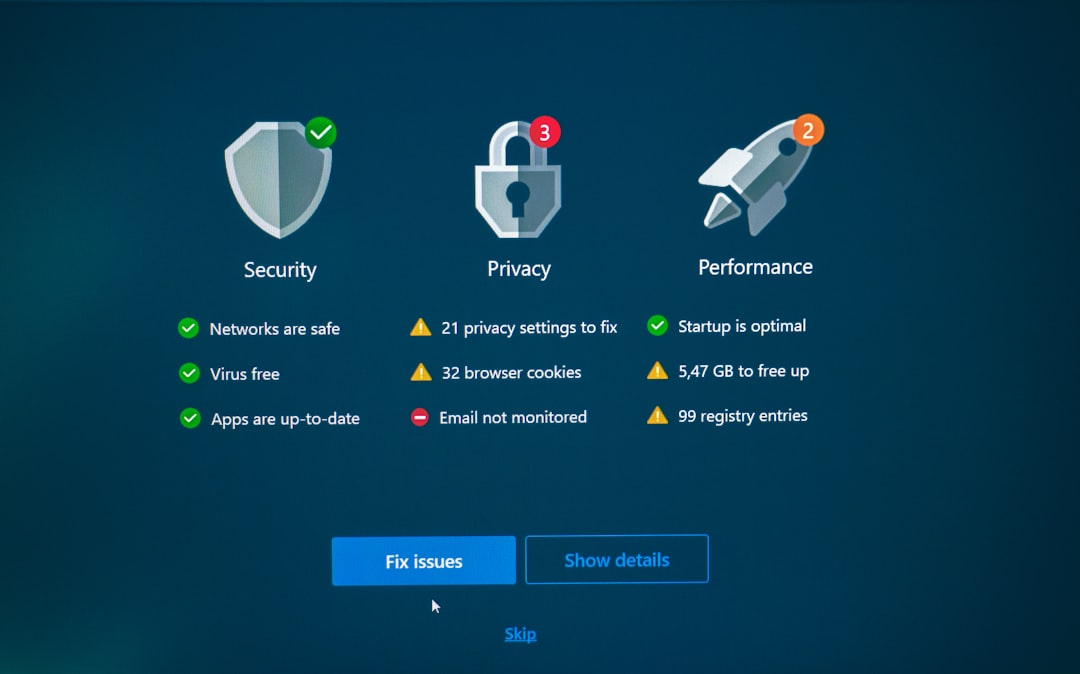
Many antivirus programs mistakenly flag mod loaders or injected files as suspicious. When this happens, critical files may be quarantined or deleted.
What to Do:
- Open your antivirus dashboard.
- Check Quarantine or Threat History.
- Restore any Thunderstore, BepInEx, or mod-related files.
- Add the game folder and Thunderstore to the exclusion list.
After restoring files, restart your computer before launching the mod manager again.
Step 5: Reinstall Thunderstore Mod Manager
If the application itself is corrupted, reinstalling often fixes hidden file issues.
Clean Reinstall Steps:
- Uninstall Thunderstore Mod Manager from Apps & Features.
- Delete leftover folders in:
- C:\Users\YourName\AppData\Roaming\Thunderstore Mod Manager
- Download the latest version from the official Thunderstore website.
- Reinstall and recreate your profile.
This ensures old configuration files are not interfering.
Step 6: Recreate Your Mod Profile
Profiles can become corrupted, especially after crashes or interrupted updates.
To create a new profile:
- Open Thunderstore.
- Create a new profile.
- Install one mod and test.
If the new profile works, your previous one was likely corrupted.
Step 7: Manually Check BepInEx Installation
Thunderstore relies on BepInEx for many modded games. If this framework is missing or incomplete, you may see file-related errors.
Image not found in postmetaEnsure the following exist in your game directory:
- BepInEx folder
- winhttp.dll
- doorstop_config.ini
If these are missing, uninstall and reinstall BepInEx through Thunderstore.
Step 8: Check for Special Characters in File Paths
In rare cases, special characters or very long file paths can break mod loading processes.
For example:
- Usernames with non-Latin characters
- Folders with unusual symbols
- Extremely long nested directories
Moving your game to a simple path like C:\Games\YourGame can resolve this.
Comparison of Fix Methods
| Fix Method | Difficulty | Time Required | Most Effective When |
|---|---|---|---|
| Correct Game Directory | Easy | 5 minutes | Game was moved or reinstalled |
| Verify Game Files | Easy | 10 minutes | Core files are missing |
| Run as Administrator | Very Easy | 1 minute | Permission issues |
| Whitelist in Antivirus | Moderate | 5–10 minutes | Files were quarantined |
| Reinstall Thunderstore | Moderate | 15 minutes | Configuration corruption |
| Recreate Profile | Easy | 5 minutes | Profile-specific errors |
When to Perform a Full Reset
If all else fails, a full removal of both the game and Thunderstore may be necessary:
- Uninstall the game.
- Delete remaining game folders manually.
- Remove Thunderstore.
- Restart your PC.
- Reinstall everything fresh.
This eliminates hidden directory mismatches and leftover configuration errors.
Preventing the Error in the Future
Once resolved, users can reduce the risk of seeing this error again by following best practices:
- Avoid moving game folders without updating Thunderstore paths.
- Always close the mod manager properly before shutting down.
- Keep Thunderstore updated.
- Add antivirus exclusions immediately after installation.
- Back up working mod profiles.
Preventative maintenance saves significant troubleshooting time later.
Frequently Asked Questions (FAQ)
1. Why does Thunderstore say “The system cannot find the file specified”?
This error appears when Thunderstore cannot locate a required file or folder. It is usually caused by missing game files, incorrect directory paths, permission issues, or antivirus interference.
2. Does reinstalling the game delete my mods?
Yes, unless you back them up. Reinstalling the game removes the modded framework files. You can export your profile before uninstalling to save your configuration.
3. Is this error caused by Windows updates?
Occasionally. Major Windows updates can reset permissions or interfere with mod loaders, especially if Controlled Folder Access is enabled.
4. Can using multiple mod managers cause this problem?
Yes. Running multiple mod managers for the same game may overwrite or conflict with essential files. It is best to use only one manager per game installation.
5. Does r2modman have the same issue?
Yes. Since r2modman uses similar structures and file paths, it can display the same error under identical conditions.
6. How do I know if antivirus is blocking Thunderstore?
Check your antivirus quarantine or threat history section. If you see deleted BepInEx or mod files, restore them and add exclusions.
7. What is the quickest fix?
In most cases, correcting the game directory path or verifying Steam files resolves the issue immediately.
8. Should I manually install BepInEx instead?
Only if automatic installation repeatedly fails. However, using Thunderstore’s built-in installer is recommended for consistency.
By methodically checking directories, verifying files, and ensuring proper permissions, most users can eliminate the “The system cannot find the file specified” error quickly. Understanding how Thunderstore interacts with game folders makes troubleshooting far less intimidating and ensures a smoother modding experience moving forward.