When Windows systems begin logging unusual warnings or errors, many users eventually encounter Event ID 6062 in Event Viewer. While the message may seem cryptic at first, it usually points to an issue involving network adapters, particularly wireless cards, and their interaction with the operating system. Understanding what this event means and how to fix it can prevent network instability, slow connections, and repeated system notifications.
TLDR: Event ID 6062 typically relates to wireless network adapter issues, often involving driver conflicts, power management settings, or hardware instability. Updating or reinstalling drivers, adjusting power management configurations, and running system diagnostics usually resolve the problem. In some cases, router firmware updates or hardware replacement may be necessary. Addressing the error early can prevent recurring disconnections and long-term network instability.
Understanding Event ID 6062
Event ID 6062 commonly appears in Windows Event Viewer with a message referencing Netwtw or a similar Intel wireless adapter component. This suggests that the wireless driver encountered a problem communicating with the network adapter hardware. Users may not immediately notice visible symptoms, but underlying signs often include:
- Random WiFi disconnections
- Slow or inconsistent internet speeds
- Delayed reconnections after sleep mode
- Network adapter temporarily disappearing
The issue is frequently linked to driver instability, outdated firmware, power management misconfiguration, or hardware conflicts. Identifying the exact cause requires systematic troubleshooting.
How to Confirm the Error in Event Viewer
Before applying any fixes, it is important to verify the error details.
- Press Windows + R, type eventvwr.msc, and press Enter.
- Navigate to Windows Logs > System.
- Click Filter Current Log and enter 6062 in the Event ID field.
- Review the error source and description.

The source often references Intel wireless components, but other adapter brands may display similar behavior under different driver names.
Primary Causes of Event ID 6062
The most common triggers include:
- Outdated or corrupted wireless drivers
- Windows updates conflicting with existing drivers
- Power-saving features disabling the adapter
- Router compatibility issues
- Hardware degradation
Resolving the error depends on narrowing down which of these factors is responsible.
Step-by-Step Methods to Fix Event ID 6062
1. Update Wireless Network Drivers
Driver updates are the most effective fix in most cases. Old drivers may conflict with recent Windows updates or fail to handle power transitions correctly.
To update manually:
- Open Device Manager.
- Expand Network adapters.
- Right-click the wireless adapter.
- Select Update driver.
- Choose Search automatically or install drivers downloaded from the manufacturer’s website.
Installing the latest driver directly from the hardware manufacturer (e.g., Intel, Realtek, Broadcom) is often more reliable than using generic Windows drivers.
2. Reinstall the Network Adapter
If updating does not resolve the issue, reinstalling the device may clear corrupted configurations.
- Open Device Manager.
- Right-click the wireless adapter.
- Select Uninstall device.
- Restart the computer.
Windows will automatically reinstall the adapter upon reboot.
3. Adjust Power Management Settings
Windows power-saving features frequently cause Event ID 6062 after the system wakes from sleep mode.
To disable power-saving for the adapter:
- Open Device Manager.
- Right-click the wireless adapter and choose Properties.
- Go to the Power Management tab.
- Uncheck Allow the computer to turn off this device to save power.
This prevents the adapter from entering low-power states that may trigger communication errors.
4. Update Router Firmware
Less commonly, the issue may stem from compatibility problems between the computer’s wireless driver and the router firmware. Updating the router’s firmware can stabilize connections and eliminate repeated system log entries.
Steps generally include:
- Logging into the router’s admin panel
- Checking for firmware updates
- Installing the latest stable version
Users should consult the router manufacturer’s documentation before proceeding.
5. Run Network Troubleshooter
Windows includes a built-in network diagnostic tool:
- Go to Settings > Network & Internet.
- Select Advanced network settings.
- Run Network troubleshooter.
Although basic, this tool may automatically reset configurations contributing to the issue.
6. Reset Network Settings
A full network reset clears all adapters and reinstalls them from scratch.
- Open Settings.
- Navigate to Network & Internet > Advanced network settings.
- Select Network reset.
Note: This removes saved WiFi networks and passwords.
Comparison of Troubleshooting Methods
| Method | Difficulty | Effectiveness | Risk Level |
|---|---|---|---|
| Update Drivers | Easy | High | Low |
| Reinstall Adapter | Easy | High | Low |
| Adjust Power Settings | Easy | Medium to High | Low |
| Update Router Firmware | Moderate | Medium | Medium |
| Network Reset | Moderate | High | Medium |
When Hardware Might Be the Problem
If Event ID 6062 persists despite all software fixes, hardware may be at fault. Wireless cards, especially in laptops, can degrade over time due to heat exposure or prolonged use.
Possible indicators include:
- WiFi disconnects even after clean Windows reinstall
- Adapter not detected intermittently
- Repeated driver crashes across multiple networks
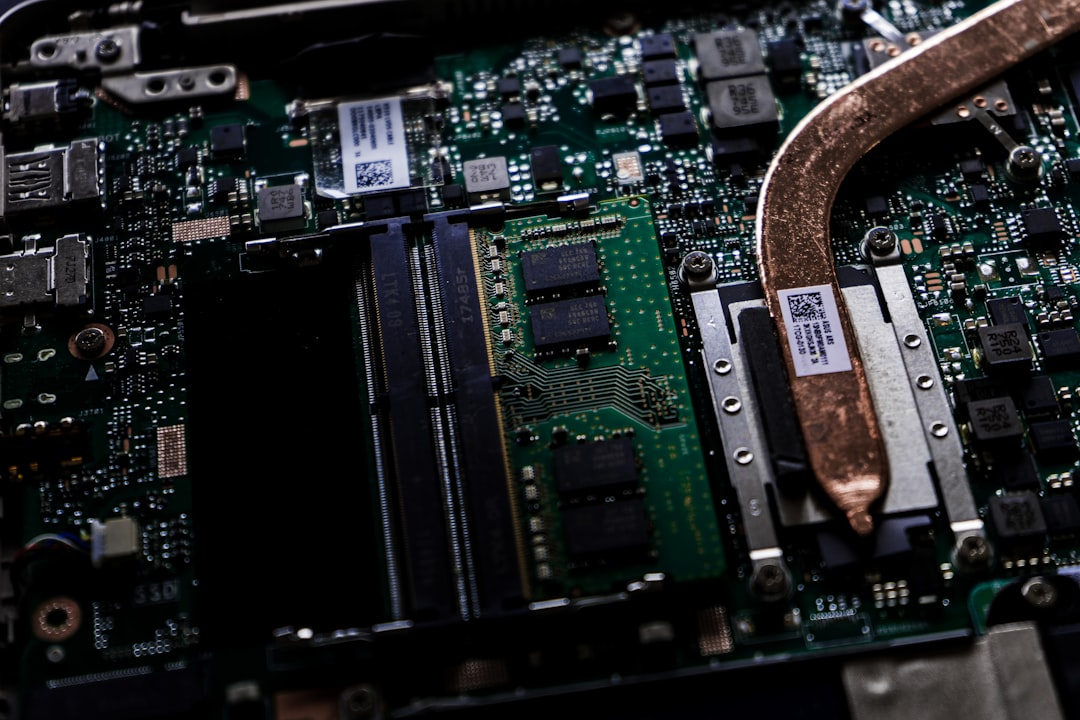
In desktop computers, replacing a PCIe wireless card is generally inexpensive. Laptop users may consider USB WiFi adapters if internal replacement is difficult.
Preventing Event ID 6062 in the Future
Prevention is mostly about maintaining system compatibility:
- Keep Windows updated
- Install manufacturer-approved drivers
- Avoid beta or experimental firmware
- Disable aggressive power-saving modes
- Ensure adequate system cooling
Regular system maintenance greatly reduces recurrence.
Advanced Troubleshooting Options
For IT professionals or advanced users, further investigation may include:
- Analyzing driver crash dumps
- Checking BIOS updates
- Disabling advanced wireless features such as 802.11ax temporarily
- Testing the adapter on a different network environment
Sometimes, disabling features like Preferred Band or Roaming Aggressiveness within adapter advanced settings improves stability.
Conclusion
Event ID 6062 may initially appear alarming, but it is typically resolvable through systematic troubleshooting. In most cases, updating or reinstalling the wireless driver and adjusting power management settings restores normal functionality. Persistent issues may require router updates or hardware replacement, but these scenarios are less common. Addressing the problem proactively ensures stable connectivity and cleaner system logs moving forward.
Frequently Asked Questions (FAQ)
1. Is Event ID 6062 dangerous?
No, it is not inherently dangerous. It indicates a network adapter communication issue rather than a security threat.
2. Can I ignore Event ID 6062 if my internet works fine?
If there are no connection symptoms, it may not require immediate action. However, recurring logs could indicate emerging hardware or driver instability.
3. Does Event ID 6062 only affect Intel adapters?
No, although it is commonly associated with Intel wireless drivers, similar issues can occur with other manufacturers.
4. Will resetting Windows fix Event ID 6062?
A full Windows reset may resolve deep configuration conflicts, but it is rarely necessary. Driver updates and power setting adjustments usually fix the problem.
5. How do I know if my WiFi card is failing?
Frequent disconnections across multiple networks, inability to detect WiFi consistently, and recurring driver crashes even after reinstallations suggest hardware failure.
6. Can router settings cause Event ID 6062?
Yes. Outdated firmware or incompatible wireless standards may trigger adapter communication errors.
7. Should I use third-party driver update tools?
It is generally safer to download drivers directly from the hardware manufacturer to avoid incorrect or bundled software installations.