
Roblox is all about fun, friends, and fast chats. So when you see the message “Chat Is Not Available with This User”, it can feel confusing. Did you do something wrong? Did they block you? Is Roblox acting up? Don’t worry. This guide will walk you through everything in a simple and fun way.
TLDR: The “Chat Is Not Available with This User” error usually happens because of privacy settings, age restrictions, blocking, or temporary Roblox glitches. Check your account settings and your friend’s settings first. Make sure neither of you has blocked the other. If nothing works, updating the app or contacting Roblox Support can help.
What Does This Error Actually Mean?
When you see this message, Roblox is basically saying, “You can’t chat with this person right now.” That’s it. It doesn’t always mean something bad.
There are several possible reasons:
- Privacy settings are limited.
- One of you blocked the other.
- You are not friends on Roblox.
- Age restrictions are active.
- There is a temporary server issue.
Let’s break these down one by one.
1. Check Your Privacy Settings
This is the most common reason. Roblox allows users to control who can chat with them.
To check your privacy settings:
- Log in to your Roblox account.
- Click the gear icon in the top corner.
- Select Settings.
- Go to the Privacy tab.
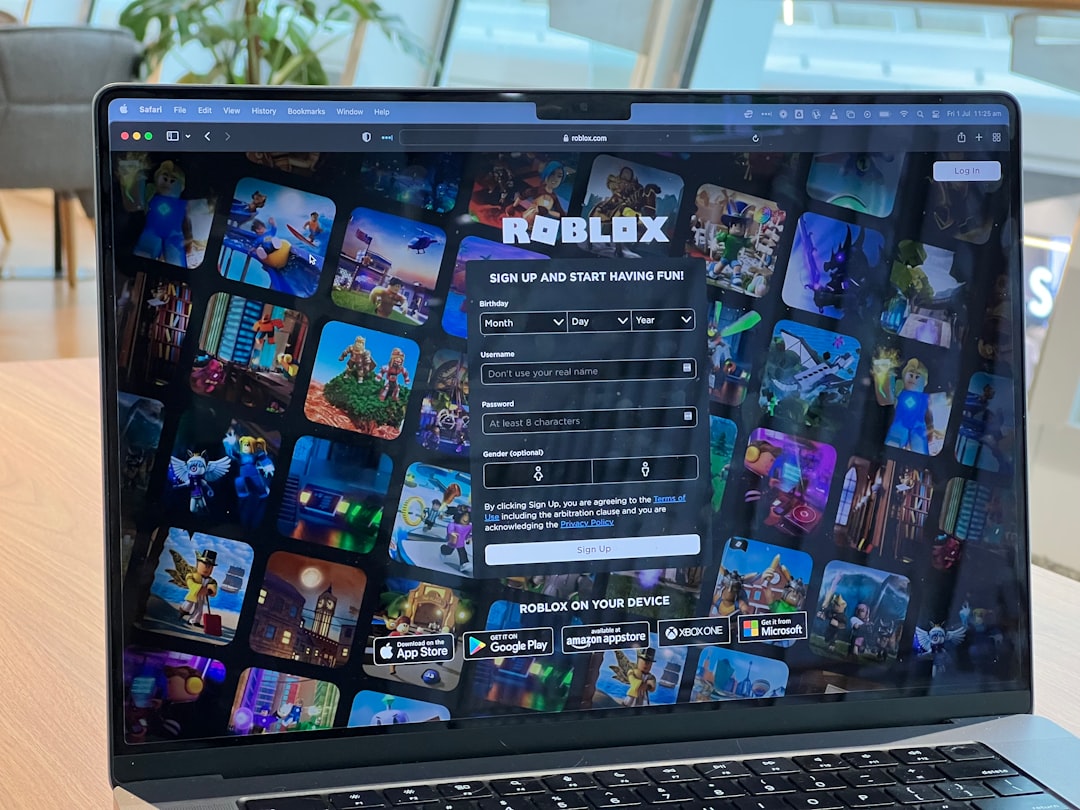
Look for these options:
- Who can chat with me?
- Who can chat with me in app?
If they are set to No one, that’s your problem.
Change them to:
- Friends (safer)
- Everyone (if allowed)
Now save your changes and try again.
2. You Might Not Be Friends
In many cases, Roblox only allows chats between friends.
If you are trying to message someone who is not your friend, you may see the error.
Fix it like this:
- Go to their profile.
- Click Add Friend.
- Wait for them to accept.
Once you are friends, try chatting again.
Simple fix. Easy win.
3. Someone May Have Blocked the Other
This one hurts a little. But it happens.
If someone blocks you, Roblox instantly disables chat between both of you.
You won’t get a warning. You’ll just see the error.
To check if you blocked them:
- Go to Settings.
- Click Privacy.
- Scroll to Blocked Users.
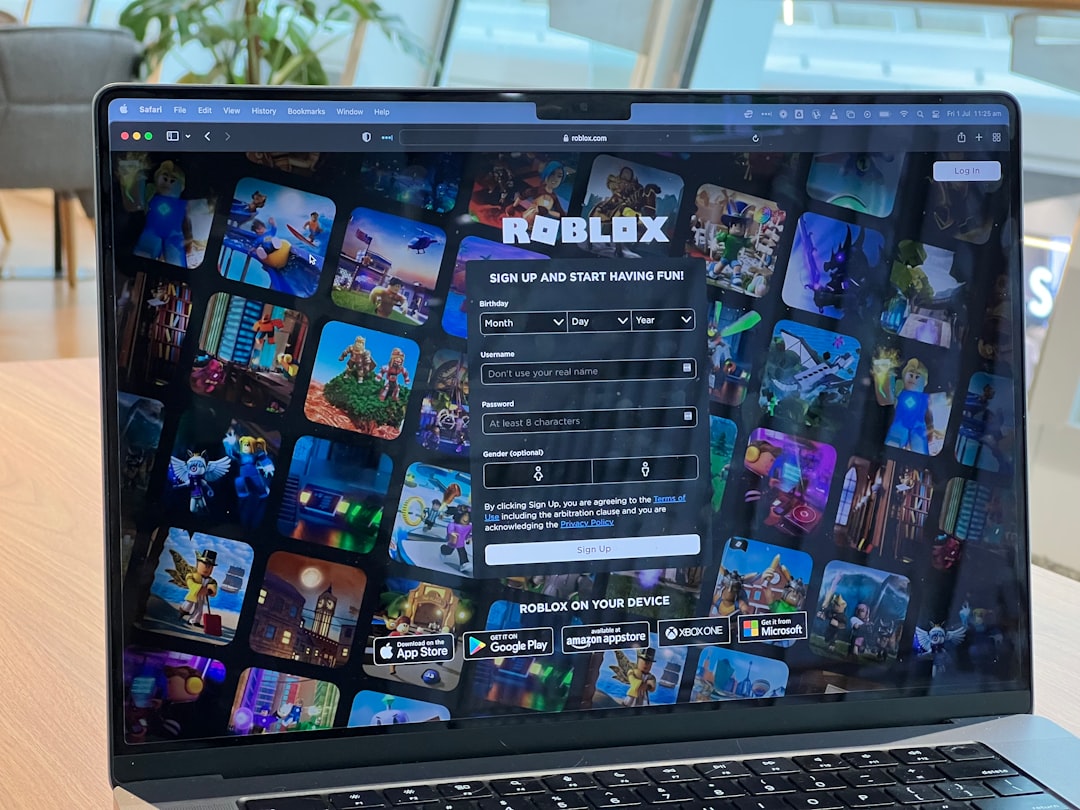
If their name is on that list, click Unblock.
If they blocked you, unfortunately, you can’t fix that yourself. You’ll need to talk to them in person or through another platform.
4. Age Restrictions and Parental Controls
Roblox takes safety very seriously. Especially for younger players.
If an account is under 13, chat features may be limited automatically.
Parents can also apply strict controls, such as:
- Disabling chat completely
- Allowing chat with friends only
- Turning off in-experience chat
To check:
- Go to Settings.
- Click Parental Controls.
- Review restrictions.
If a parent PIN is enabled, you may need a parent to adjust the settings.
Sometimes the system itself restricts chat based on age verification. In that case, you may need to verify your age for full access.
5. Roblox Server Problems
Sometimes it’s not you. It’s Roblox.
Servers go down. Bugs happen. Updates cause small glitches.
If everything looks correct in your settings, check:
- The Roblox Status Page
- Roblox’s official social media
If there is a known issue, you’ll just have to wait it out. Most chat issues are fixed within hours.
Patience wins here.
6. App Needs Updating
Old versions of Roblox sometimes create weird errors.
To fix this:
- Open the App Store (iPhone)
- Open Google Play (Android)
- Search for Roblox
- Tap Update if available
On PC:
- Close Roblox completely
- Reopen it
- It usually auto-updates
Using the latest version prevents many bugs.
7. Clear Cache (Mobile Users)
If you’re on Android, clearing the app cache can help.
Steps:
- Go to Settings on your phone.
- Tap Apps.
- Find Roblox.
- Select Storage.
- Tap Clear Cache.
This removes temporary files. It does not delete your account.
iPhone users may need to uninstall and reinstall the app instead.
8. Check If the User Deleted Their Account
If a user deletes their account, chat becomes unavailable.
You can check this by:
- Searching their username
- Visiting their old profile link
If the account doesn’t load properly, that might be the reason.
9. Try a Different Device
This sounds simple. But it works.
Log in from:
- A different phone
- A tablet
- A computer
If chat works there, your original device may have a glitch.
Restarting your device can also help.
10. Contact Roblox Support
If nothing works, it’s time to call in the pros.
Go to the official Roblox Support page and submit a request.
Include:
- Your username
- The other user’s username
- A screenshot of the error
- A short description of the issue
Be clear and polite. Support teams respond faster when the message is short and specific.
Quick Troubleshooting Checklist
Before you panic, go through this list:
- ✔ Are you friends?
- ✔ Is chat enabled in Privacy settings?
- ✔ Is either account under 13?
- ✔ Did someone block the other?
- ✔ Is Roblox experiencing server issues?
- ✔ Is your app updated?
Most users solve the problem within five minutes.
Why Roblox Limits Chat Anyway
It may feel annoying.
But these safety systems exist for good reasons:
- Protect younger players
- Prevent harassment
- Stop spam
- Encourage safe communication
Roblox hosts millions of players every day. Strong moderation keeps things safe and fun.
Final Thoughts
The “Chat Is Not Available with This User” error is usually not serious. It’s almost always caused by settings, restrictions, or simple technical hiccups.
Start with privacy settings. Check friend status. Look at blocked users. Update your app.
Take it step by step.
Most importantly, don’t jump to conclusions. It doesn’t automatically mean someone dislikes you.
With a few clicks, you’ll likely be chatting again in no time.
And then? Back to building, exploring, and having fun in Roblox.
Happy gaming!