Experiencing system freezes can be one of the most disruptive PC issues a user faces. Whether you’re a casual browser or a professional relying on consistent performance, nothing derails productivity faster than a sudden, unexplained hang. One of the frequent culprits behind such freezes in Windows is the dreaded Event ID 1002, which logs a “Hanging application…” error. In this guide, we’ll explore what Hanging Events 1002 are, why they occur, and how to troubleshoot and fix them effectively.
TL;DR: Event ID 1002 indicates an application hang that causes your system to freeze or respond sluggishly. These events are often caused by software incompatibilities, outdated drivers, system resource issues, or corrupted files. To fix this, you should check Event Viewer logs, update your drivers and Windows software, and consider performing system scans for corruption. In persistent cases, a clean boot or system reset might be necessary.
Understanding Event ID 1002
When your Windows 10 or Windows 11 PC hangs, the Event Viewer may record an Event ID 1002 in the Application log, usually resembling the following:
Source: Application Hang
Event ID: 1002
Description: The program [application name.exe] version x.x.x.x stopped interacting with Windows and was closed.
This error means that a specific application became unresponsive to the system—leading to a freeze that disrupts both usage and performance. It frequently involves high CPU or memory usage and can even result in terminated background services or forced system restarts.
Common Causes of Event ID 1002
Multiple factors can cause application hangs. Identifying the root cause depends largely on consistency—whether it’s one app that always crashes or random system-wide hangs.
Typical causes include:
- Outdated or corrupted device drivers
- Conflicts between third-party applications
- Corrupted Windows system files or registry entries
- Antivirus or firewall interference
- Hardware issues—RAM, hard drive failures, or overheating
Step-by-Step Troubleshooting for Event 1002
1. Check Event Viewer for Specific Clues
The first step is to gather more specifics from the Event Viewer:
- Press Win + X, select Event Viewer.
- Navigate to Windows Logs > Application.
- Look for entries with Event ID: 1002.
- Check the Faulting application name and Hang type details.
Document the affected program and the exact time the hang occurred—this will help correlate it with any recent changes or installations.
2. Update Your System and Drivers
Outdated or incompatible software is one of the most common reasons for hanging events. Always ensure your operating system and drivers are current:
- Run Windows Update and install all pending patches.
- Visit the manufacturer’s websites for your GPU, chipset, and other drivers to get the latest versions.
- Use Device Manager (Win + X → Device Manager) to check for any flagged devices.
3. Run System File Checker and DISM
Corrupted system files can cause erratic behavior. Running a scan can automatically fix or highlight these issues:
sfc /scannow
DISM /Online /Cleanup-Image /RestoreHealth
To execute these:
- Open Command Prompt (Admin).
- Type each command and press Enter.
- Wait for the scan to complete, which can take 10–15 minutes.
4. Perform a Clean Boot
Conflicts from third-party software can result in application hangs. Performing a clean boot helps isolate these issues:
- Press Win + R, type msconfig, and press Enter.
- Go to the Services tab, check “Hide all Microsoft services”, then click Disable all.
- Next, go to the Startup tab and click Open Task Manager.
- Disable all startup programs, restart your PC.
If the freezing stops, slowly re-enable services and programs to pinpoint the culprit.
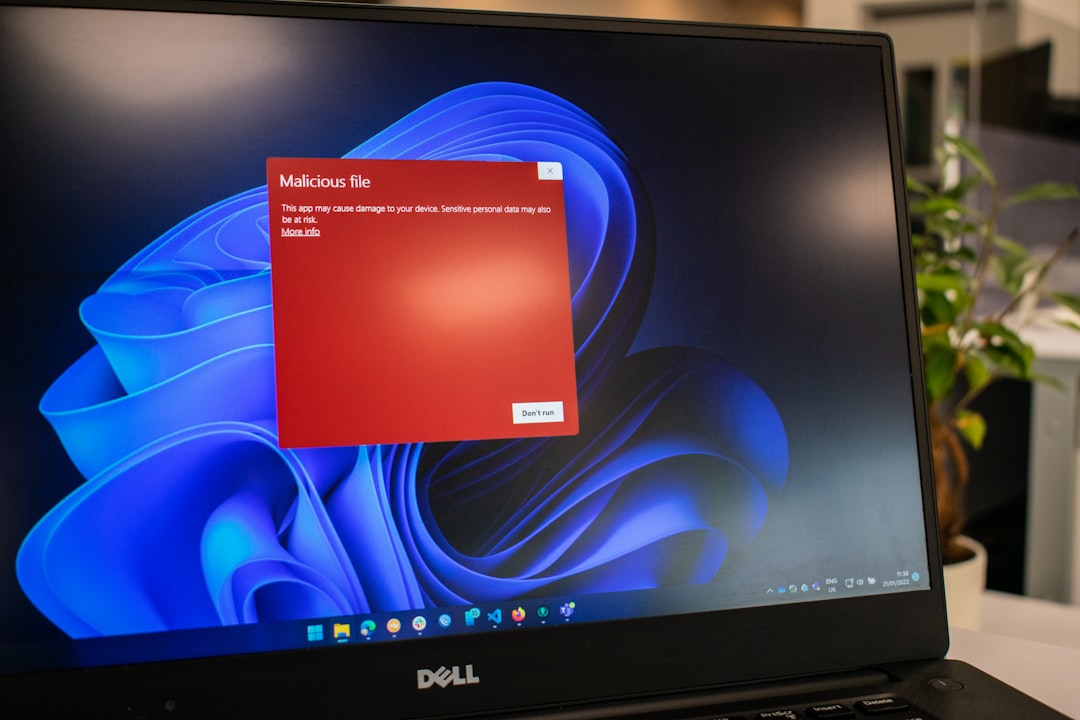
5. Scan for Malware and Security Conflicts
Viruses and faulty antivirus programs are notorious for causing application hangs. Run a full malware scan using:
- Windows Defender Full Scan
- A trusted third-party antivirus/malware tool (e.g., Malwarebytes)
If using third-party antivirus software, temporarily disable it to test system stability.
6. Inspect Hardware and Resource Usage
Consistently high CPU, disk, or memory usage can lead to system hangs. Open Task Manager and monitor performance:
- Press Ctrl + Shift + Esc to open Task Manager.
- Navigate to the Performance tab.
- Look for any spikes or unusual usage trends.
If possible, run hardware diagnostics:
- Use Windows Memory Diagnostic for RAM issues.
- For hard drives, open Command Prompt and run:
chkdsk C: /f /r
7. Advanced Fixes: Registry and Group Policy Edits
Warning: Editing the registry or local policy settings can cause further issues if done incorrectly. Always back up before proceeding.
You may adjust these settings to reduce hangs:
- Extend the HungAppTimeout in the registry to allow apps more time before Windows flags them as unresponsive.
- Adjust WaitToKillAppTimeout to gracefully handle slow applications.
8. Restore or Reset Windows
If repeated attempts yield no solution and hangs persist, consider a system restore or reset:
- System Restore: Roll back to a state before the problem started.
- Reset this PC: Reinstall Windows while keeping your personal files, under Settings → Update & Security → Recovery.
This should be a last-resort action, especially for users who rely on software configurations and third-party applications that would need reinstallation.
Best Practices to Prevent Hanging Events
Once you’ve resolved the current issue, here are some proactive tips to avoid future 1002 events:
- Keep software, drivers, and Windows OS up-to-date.
- Run regular malware scans.
- Monitor system performance monthly.
- Avoid installing incompatible or poorly-reviewed software.
- Consider regular disk cleanup and registry optimization.
A small investment in proactive maintenance goes a long way in ensuring system reliability.
Conclusion
Application Hang – Event ID 1002 is a common but addressable issue in Windows systems. Whether triggered by faulty software, outdated drivers, or resource overloads, resolving it involves methodical diagnosis, careful updates, and in some cases, rollback or reset strategies. The key is persistence and precision—record the exact symptoms, identify the failing process, and work through solutions with diligence.
By following the steps outlined above, you’re well on your way to restoring your Windows PC’s reliability and performance.