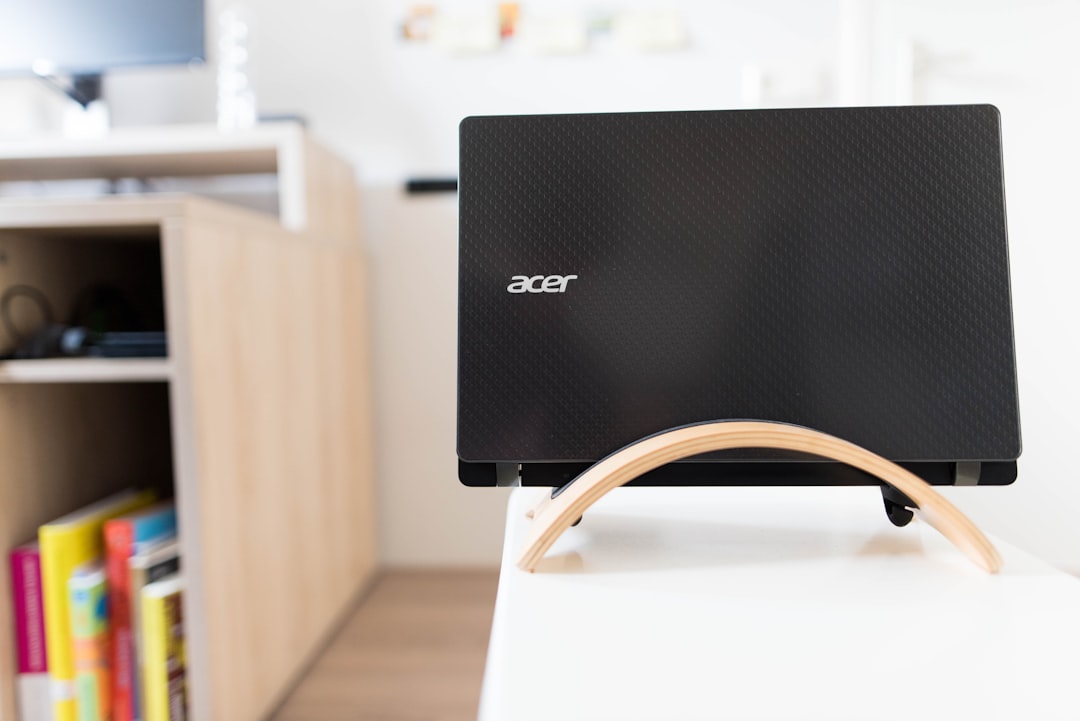
Experiencing a black screen on an Acer laptop can be both confusing and frustrating. Whether it happens during startup, after login, or randomly during use, there are several causes behind this common issue. Fortunately, many of these causes are easy to fix without needing professional repair. This guide provides an in-depth look into diagnosing and resolving the black screen issue on an Acer laptop.
TLDR
If your Acer laptop screen goes black, it could be caused by hardware issues, outdated drivers, or simple system glitches. Start with basic troubleshooting like performing a hard reset or checking display brightness settings. If that fails, dive into more technical fixes like updating graphics drivers or inspecting hardware connections. This article provides step-by-step instructions and FAQs to help get your screen working again.
Common Causes of the Black Screen Issue
Before attempting any fixes, it’s important to understand the potential reasons why an Acer laptop screen might go black. Some common causes include:
- Loose or faulty connections between the screen and the motherboard
- Driver issues such as outdated or incompatible display drivers
- Overheating or hardware malfunction
- Wrong display output settings sending the signal to a non-existent monitor
- Power supply or battery faults causing intermittent screen visibility
Step-by-Step Fixes for an Acer Laptop Screen Going Black
1. Perform a Hard Reset
This is the simplest fix and often corrects minor glitches or system faults.
- Turn off the laptop completely.
- Unplug the power adapter and remove the battery (if accessible).
- Press and hold the Power Button for at least 60 seconds to discharge any residual power.
- Reinsert the battery, plug in the power adapter, and turn the laptop on again.
2. Check the Brightness and Display Settings
Sometimes the screen is functioning, but the brightness is too low or the display output is redirected.
- Tap Fn + Brightness Up key to increase screen brightness.
- Use Windows Key + P to switch between display modes (PC screen only, Duplicate, Extend, Second screen only).
Cycle through these modes to ensure the screen is set to display on the laptop’s monitor.
3. Connect to an External Monitor
This test will reveal whether the issue is with the screen itself or a deeper hardware problem.
- Connect your Acer laptop to an external monitor using HDMI or VGA.
- If the external monitor displays the normal screen, the problem likely lies with the laptop LCD or cable.
- If nothing appears, the issue may be with the GPU or motherboard.
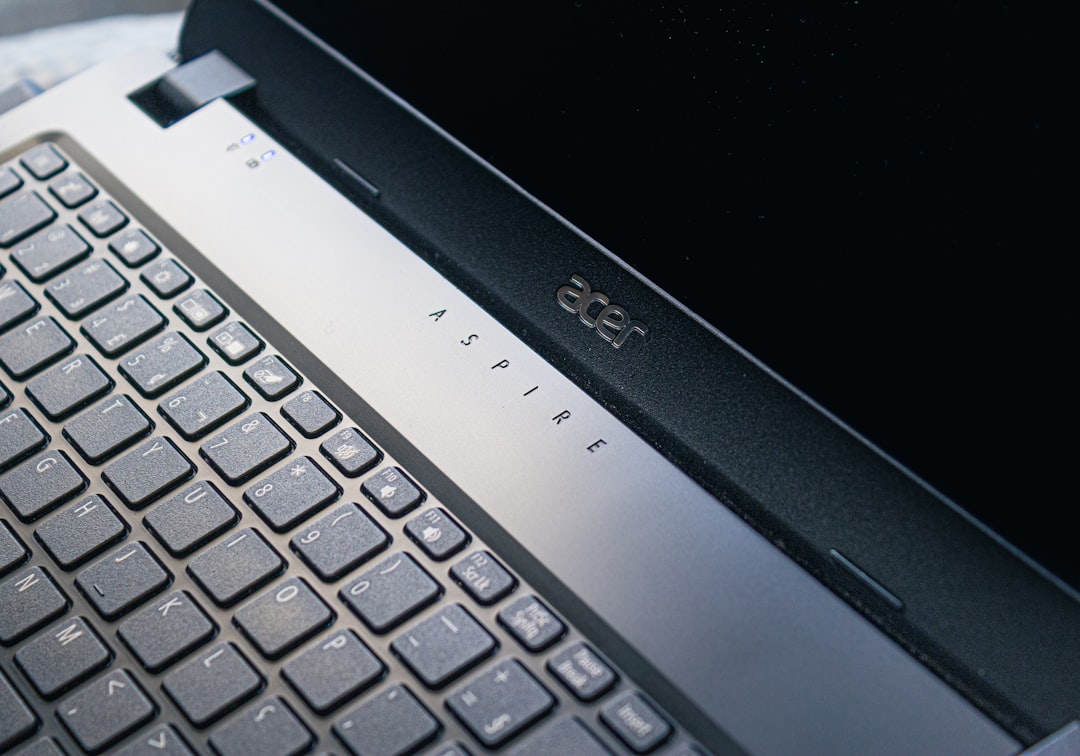
4. Boot into Safe Mode
Safe Mode disables non-essential services and drivers, allowing you to determine whether the issue is software-related.
- Turn the laptop off completely.
- Turn it on and immediately press F8 or Shift + F8 repeatedly until the Advanced Boot Options screen appears.
- Select Safe Mode with Networking.
If the laptop works normally in Safe Mode, then the issue is likely related to a driver or software conflict.
5. Update or Reinstall the Graphics Driver
Outdated or corrupted graphics drivers frequently cause black screen issues.
- Boot into Safe Mode as outlined above.
- Right-click Start and select Device Manager.
- Expand the Display adapters section.
- Right-click your video card and choose Update driver.
If updating doesn’t help, you can uninstall it and then reboot. Windows will reinstall the default drivers upon startup.
6. Disable Fast Startup
Fast Startup can sometimes cause inconsistencies with hardware detection.
- Go to Control Panel > Power Options > Choose what the power buttons do.
- Click Change settings that are currently unavailable.
- Uncheck Turn on fast startup and click Save changes.
Restart your laptop to see if the issue is resolved.
7. Check RAM and Internal Hardware Connections
Loose RAM modules or display connectors may also lead to screen blackouts.
- Power down the laptop and open the casing (if you are comfortable doing so).
- Carefully remove and reseat the RAM sticks.
- Inspect the LCD cable connection between the motherboard and screen.
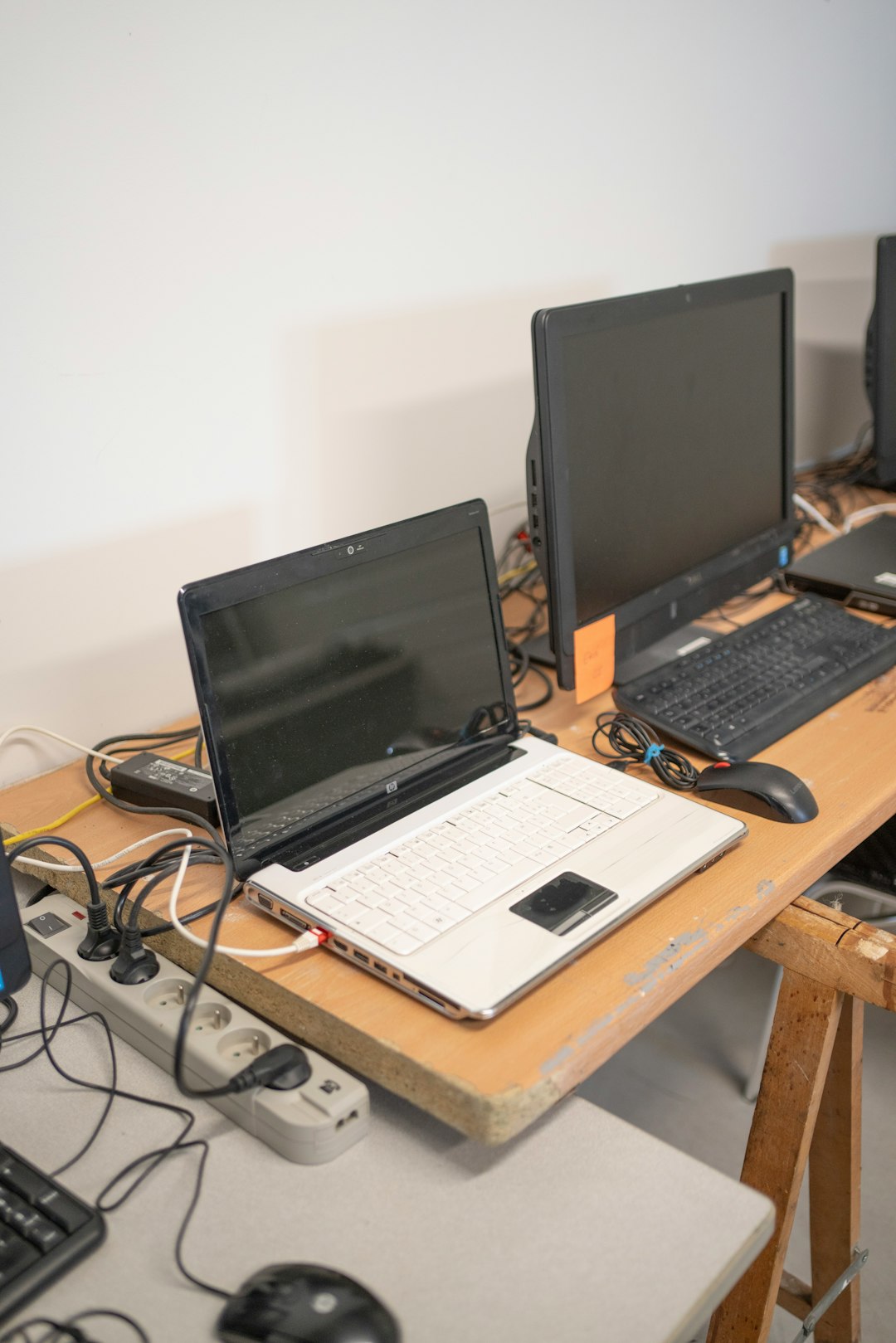
If unsure, seek help from a professional technician to avoid damage.
8. BIOS or Firmware Reset
Resetting the BIOS can help rule out conflicts at the firmware level.
- Turn off the laptop.
- Press and hold the F2 key and then power on the laptop.
- This should bring up the BIOS Menu.
- Find and select “Load Setup Defaults”, then save and exit.
When to Seek Professional Repair
If none of the above solutions work, the black screen issue may be caused by:
- Defective GPU or integrated graphics failure
- Backlight failure
- Motherboard faults
- Physically damaged screen panel
In such instances, it’s advisable to contact Acer support or visit an authorized repair center.
Frequently Asked Questions (FAQ)
1. Why does my Acer laptop screen suddenly go black while I’m using it?
This might be due to overheating, faulty drivers, or a hardware issue such as a failing GPU or screen cable. It can also happen due to Windows power settings turning off the display or putting the system to sleep.
2. How do I fix a black screen but my laptop is still running?
Try pressing Ctrl + Shift + Windows + B to reset the graphics driver. Alternatively, connect the laptop to an external display to check if the issue is screen-related.
3. Can a virus cause my Acer screen to go black?
Yes, some malware or virus infections can cause system glitches, including issues with the display. Running a full system scan using antivirus software is advised in suspicious cases.
4. What key combination resets the display on Acer laptops?
Windows + P is used to switch display modes. Ctrl + Shift + Windows + B is used to refresh the graphics driver, which can help resolve a black screen issue.
5. How do I know if my screen is dead or if it’s something else?
If the display works on an external monitor, the issue is probably with the internal screen or its cable. If both screens are black, the problem may be related to the GPU or another internal hardware component.
A black screen problem is undeniably inconvenient, but in most cases, it’s fixable without professional help. By following the solutions outlined above, users can identify the root of the problem and apply the appropriate fix to restore full laptop functionality.