It can be incredibly frustrating when a Vizio TV suddenly displays a “No Network Detected” error. Whether someone is trying to binge-watch a series or stream their favorite movie, this type of connectivity issue can bring everything to a halt. Fortunately, the problem is often simple to fix, especially when armed with the right guidance.
TLDR: If a Vizio TV is showing a “No Network Detected” message, the issue may be due to Wi-Fi interference, outdated firmware, or misconfigured settings. Basic troubleshooting includes restarting the TV, checking the router, updating firmware, and verifying network credentials. In most cases, following a step-by-step process will resolve the issue without the need for professional help.
Common Causes of the “No Network Detected” Error
Understanding the root cause of this issue is essential for applying the correct fix. Some of the most frequent reasons include:
- Network connection issues – such as weak Wi-Fi signals or router problems.
- Software or firmware glitches in the TV’s operating system.
- Incorrect TV network settings.
- Outdated firmware that affects network functionality.
- Interference from other wireless devices.
Step-by-Step Troubleshooting Guide
1. Check Wi-Fi Connection and Router
The first step is to verify that the Wi-Fi connection is active and functioning.
- Ensure other devices (such as smartphones or laptops) can connect to the network.
- If other devices can connect, restart the Vizio TV and try again.
- If no devices can connect, restart the router and modem by unplugging them for 30 seconds and then plugging them back in.
Also check for loose Ethernet cables if using a wired connection.
2. Restart the Vizio TV
Many connectivity issues can be resolved with a simple restart.
- Turn off the TV using the remote control.
- Unplug the power cord from the wall outlet.
- Wait at least 60 seconds before plugging it back in.
- Turn the TV back on and attempt to connect to the network.
3. Re-enter Wi-Fi Password
If the Wi-Fi SSID is visible but the connection fails, double-check the password:
- Go to Menu > Network.
- Select Wireless, choose the network, and select Forget.
- Reselect the same network and re-enter the Wi-Fi password carefully.
Typos or incorrect capitalization are frequent reasons for connection failures.
4. Check Date and Time Settings
Incorrect date and time settings can interfere with network verification protocols.
- Navigate to Menu > System > Date & Time.
- Set the time and date to update automatically via the network.
5. Check for Firmware Updates
Vizio frequently releases software updates to fix bugs and improve connectivity:
- Go to Menu > System > Check for Updates.
- If an update is available, follow the on-screen instructions to install it.
Note that if the TV can’t access the network, a firmware update must be done manually via USB. Visit Vizio’s official support site to download the latest firmware and follow instructions for USB installation.
6. Reduce Wireless Interference
Wireless interference from microwaves, cordless phones, or other routers can degrade performance.
- Move the router closer to the TV or place it in a central location.
- Switch the router’s Wi-Fi channel from 2.4GHz to 5GHz if supported.
- Limit the number of connected devices when streaming through the Smart TV.
7. Reset Network Settings on the TV
This step clears existing network configurations that may be corrupted.
- Go to Menu > System > Reset & Admin.
- Select Reset Network Settings.
- Reconnect to the Wi-Fi after the reset is complete.
8. Perform a Full Factory Reset
If all else fails, a factory reset might be required. Be aware this will erase all custom settings and apps.
- Go to Menu > System > Reset & Admin.
- Select Reset TV to Factory Defaults.
- If prompted, enter the parental passcode (default is 0000).
- Once reset, go through the initial setup process, including network setup.
Alternative Methods and Tips
Use Ethernet Connection
If the TV won’t connect to Wi-Fi but has an Ethernet port, try using a wired connection. This can help identify if the issue lies with the wireless module.
Power Cycle the Home Network
A full power cycle of the home network can clear overloaded processes:
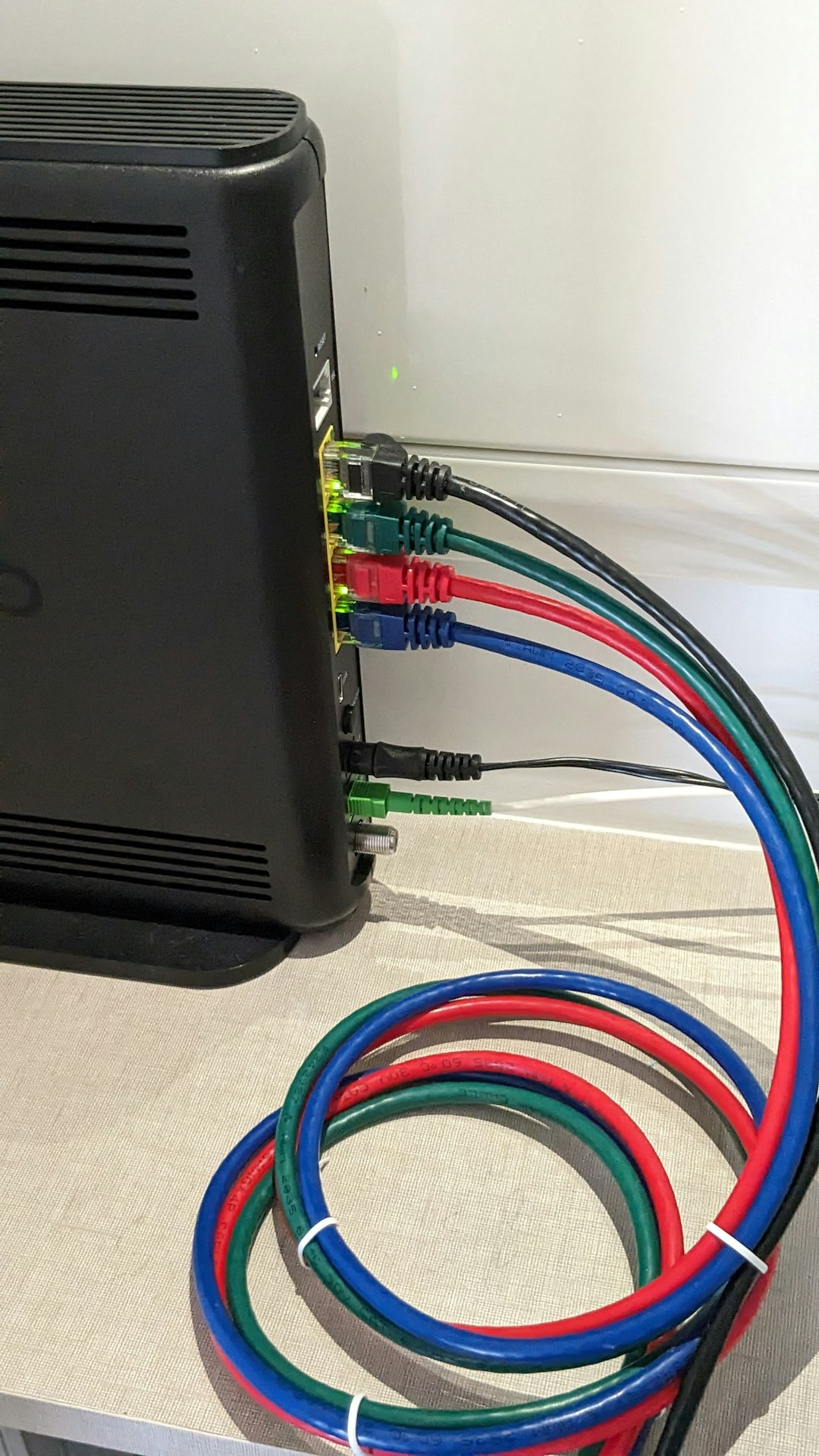
- Turn off and unplug the router and modem.
- Unplug the TV.
- Wait for at least 1–2 minutes.
- Plug in the modem, wait 30 seconds, then the router.
- Finally, plug in and start the TV.
Contact Vizio Support
If none of these methods solve the issue, the problem could be hardware-related. Contacting Vizio’s customer service or scheduling a technician might be the final step.
Preventing Future Network Issues
To avoid encountering this issue again, follow these best practices:
- Keep firmware updated regularly.
- Maintain a strong Wi-Fi signal by placing the TV near the router.
- Use a high-quality router that can handle streaming bandwidth.
- Limit the number of network devices in use during peak streaming hours.
Frequently Asked Questions
-
Q: Why does my Vizio TV keep disconnecting from Wi-Fi?
A: This can happen due to router issues, signal interference, or outdated firmware. Restarting the devices and updating the software usually helps. -
Q: Can a factory reset fix network detection problems?
A: Yes, resetting the TV can fix persistent issues that aren’t resolved by standard troubleshooting, but it erases all settings. -
Q: My Wi-Fi network is not showing up on the list. What should I do?
A: Try manually entering the network SSID in the TV settings or restart the router. Also ensure the router is broadcasting the SSID. -
Q: How do I update my Vizio TV without internet access?
A: Download the firmware from Vizio’s website on a computer, place it on a USB flash drive, and plug it into the TV while off. It will automatically begin the update process. -
Q: Could the problem be with my internet service provider?
A: Yes, sometimes the issue is external. Check with your ISP for service outages or throttling affecting your account.
With patience and a methodical approach, “No Network Detected” errors on Vizio TVs can be resolved efficiently. Using these troubleshooting tips will help users enjoy seamless streaming once again.